The visualizer
Behind every track, Milkbeat can run ProjectM TV: the MilkDrop visualizer for Android TV by the same author, built on projectM, the open-source reimplementation of Winamp's MilkDrop. It ships 9,606 presets from Jason Fletcher's Cream of the Crop collection and renders up to 4K on a 4K panel.
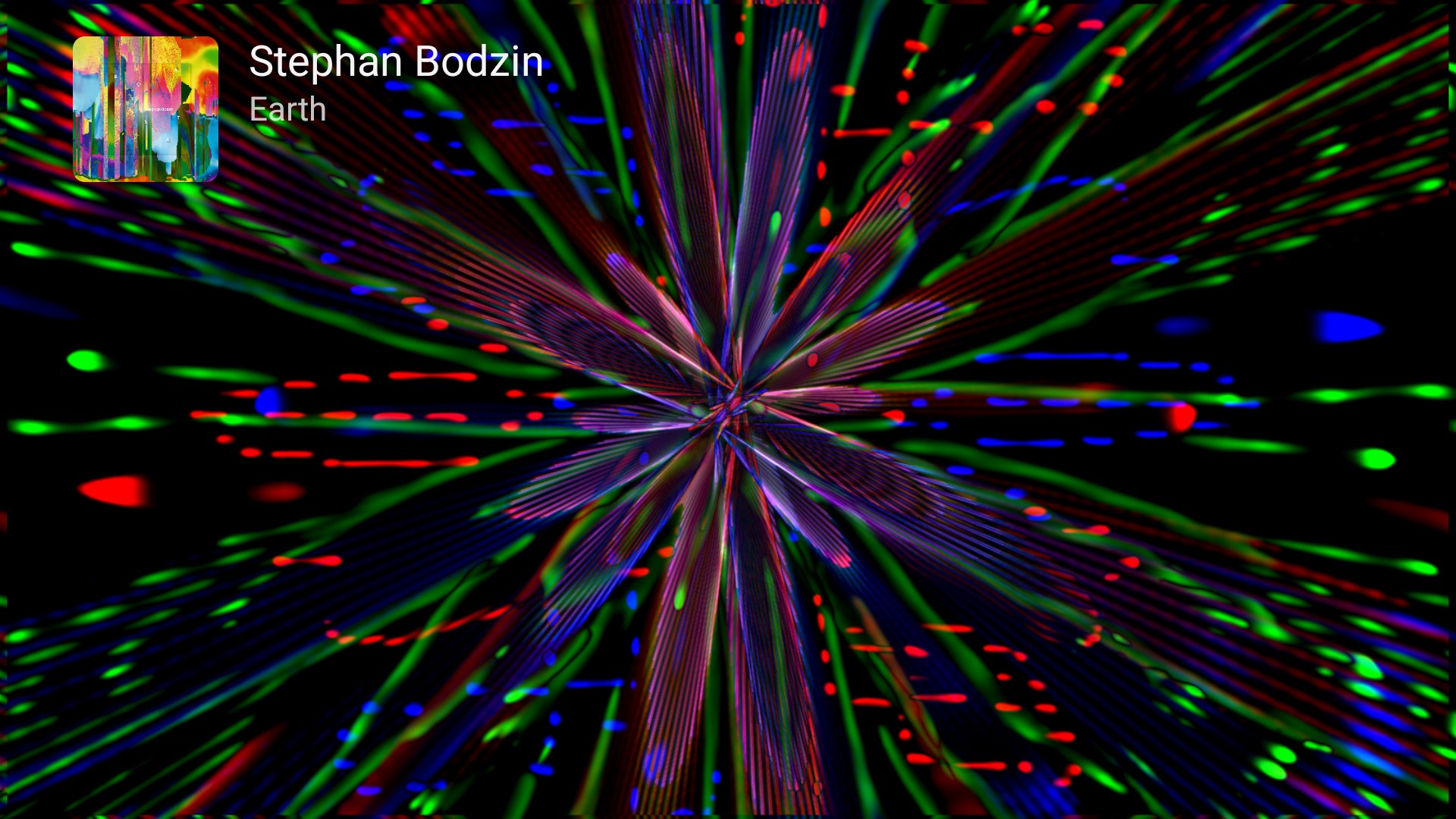
This page covers what the visualizer does inside Milkbeat. The ProjectM TV user guide goes into depth on every setting, picture quality, preset moods and the engine itself; links below point to the relevant parts.
How it fits into Milkbeat
- It hears Milkbeat's own player. The visuals take their sound straight from the track you are playing, not from the TV's output, so Milkbeat needs no microphone or audio-recording permission. Other apps' audio is not visualized.
- It runs only when you can see it. Rendering and audio monitoring stop when the visualizer leaves the screen, when a prepared video replaces it or you switch to the artwork view, and when Milkbeat goes to the background. While a music video prepares, the visualizer keeps running under its loading indicator until 30 seconds of video are buffered and the first frame is ready (or the remaining duration near the end). A visible visualizer can keep drifting on silence while music is paused.
- It uses the same engine as the standalone app. Each Milkbeat release names the ProjectM TV core it ships in its release notes. Milkbeat uses ProjectM TV's defaults for your device until you change something.
- Track details are Milkbeat's own. The cover, artists and title in the upper left come from Milkbeat's player, so ProjectM TV's Track display and notification-access settings do not apply. Custom preset packs and ProjectM TV's own auto-update are not part of Milkbeat either.
Control it with the remote
| Key | With the player controls hidden |
|---|---|
| Left / Right | Previous / another preset, as an instant cut |
| Enter | Show the playback controls, including the view button and the audio level |
The audio level above the seek bar reads Listening, Very quiet or No sound. If it stays on No sound while music plays, see Troubleshooting.
PowerVR crash fix: use Milkbeat 1.0.13 or later (ProjectM core 2.3.56+). The affected Fire TV Stick 4K Max 2nd generation is confirmed fixed. The same corrected copy path is automatic on all supported Imagination/PowerVR GPUs; device coverage and upgrade guidance includes supported Fire TV models and Google TV Streamer, plus the broader ProjectM engine coverage on phones and tablets.
Settings at a glance
All visualizer settings are in Settings → Visualizations. Changes apply the next time now playing shows the visualizer. Settings with several values open in a side panel that marks the default for your device.
| Setting | In short | Default | In depth |
|---|---|---|---|
| Enable visualizations | Turns projectM on or off; off leaves video and artwork | On with about 2 GB of RAM or more, off on smaller devices | |
| Change presets automatically | Move on after the preset duration | On | Main panel |
| Preset duration | 10 to 90 s per preset | 30 s | Main panel |
| Preset mood | All, or the beta Chill, Normal and Intense collections | All | Preset moods |
| Cut on loud beats | A loud beat may cut to the next preset early | Off | Advanced |
| Skip blank / slow presets | Leave presets that stay black or far below the frame rate | On | Advanced |
| Transition length | How long one preset blends into the next | 7 s (2 s on low-RAM devices) | Transitions |
| Transition style | Auto, Lightweight or Classic blends | Auto | Transitions |
| Native trails | Standard, Medium or High feedback detail above 1330p | Standard | Native trails |
| Frame rate | The display rate divided by 1, 2 or 4, at least 24 fps | 30 fps | Frame rate and detail |
| Detail | Warp mesh from Minimal to Ultra | By device | Frame rate and detail |
| Show diagnostics | A status line in the player controls | Off | Diagnostics |
| Timing offset | Moves the visuals against the sound: −100, −50, −25, +0, +25, +50, +75, +100, +150 or +200 ms | +0 ms | |
| Last exit | Android exit reasons, engine activity, native capture status and saved native crash backtraces | — | Exit report |
Resolution is always automatic in Milkbeat. It follows the frame-rate target and live memory headroom, up to your screen's native size. Raising the frame rate or adding trail detail can make Auto choose a lower resolution. How Auto resolution works.
Preset moods (beta)
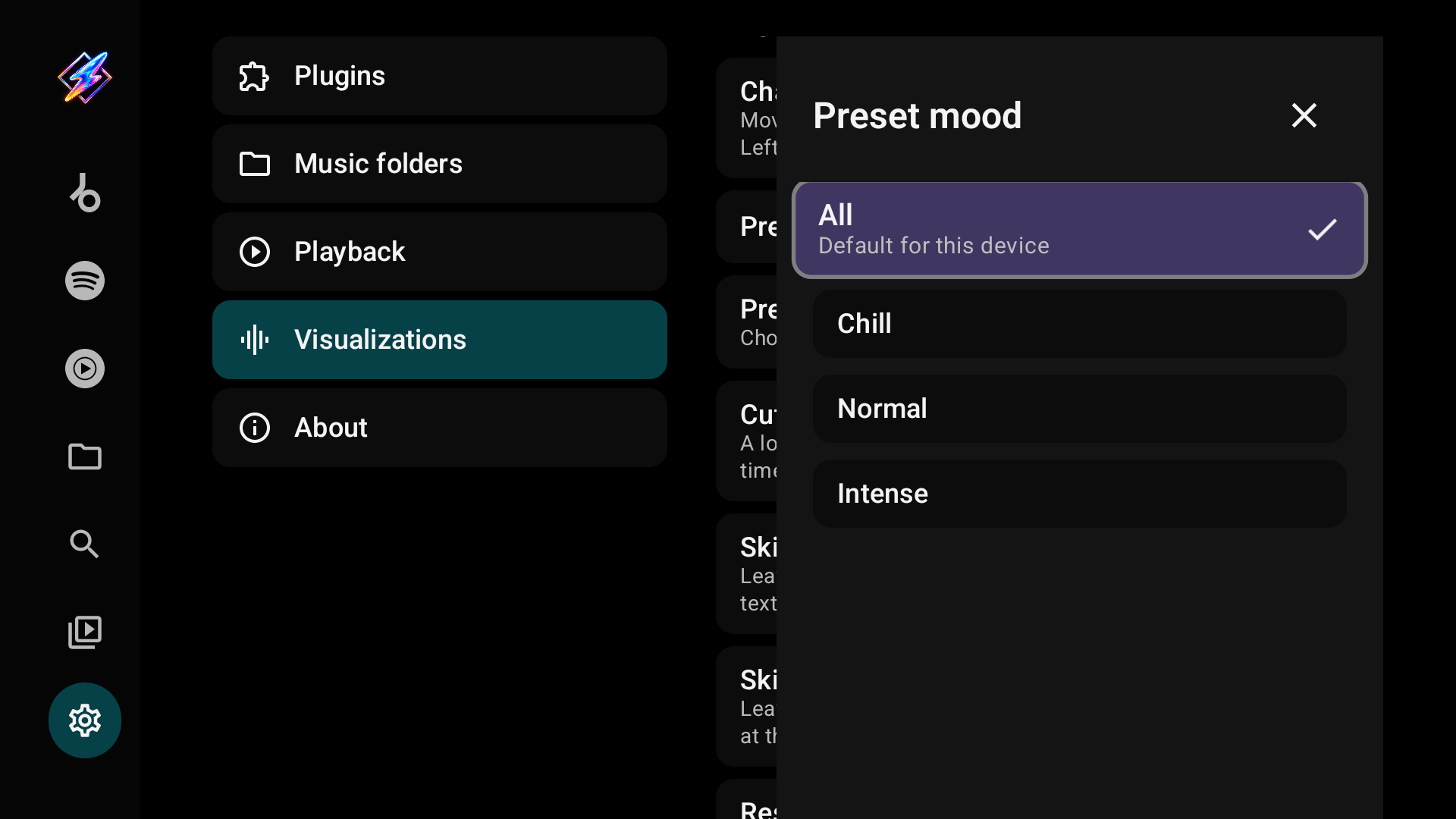
All shuffles the whole library. Chill, Normal and Intense are overlapping beta collections chosen from a measured activity score for each preset; they are predictions and will improve, and Chill is not a guarantee of no flashing. Skipped presets still stay out of every mood. What the moods look like and how they are made.
Mood mix
With the visualizer on screen, the mood button next to the queue button opens the mood mix beside the player. It is hidden for the music-video and artwork views, since only the visualizer uses presets.
Pick options to narrow the presets the visualizer plays. Options in one group (Energy, Brightness, Colour, Palette and so on) widen the mix; groups together narrow it. Each chip shows how many presets the mix would hold if you toggled it, and an option that would leave none is dimmed and skipped by the D-pad. Clear all returns to your Preset mood collection. Moods are predicted from each preset's source, so a preset can carry no option in a group, and a mix with fewer than 20 presets repeats. Skipped presets stay out. If your selection ever matches nothing playable, the mix says so and your Preset mood collection plays instead; the selection is kept.
A mix replaces the Preset mood collection while it is active. How moods are predicted.
Timing
Raise Timing offset if the visuals come after the beat you hear, lower it if they come before. Audio paths differ per TV and receiver, so judge by watching and listening; on an Ugoos AM6, +75 ms is about right.
Diagnostics
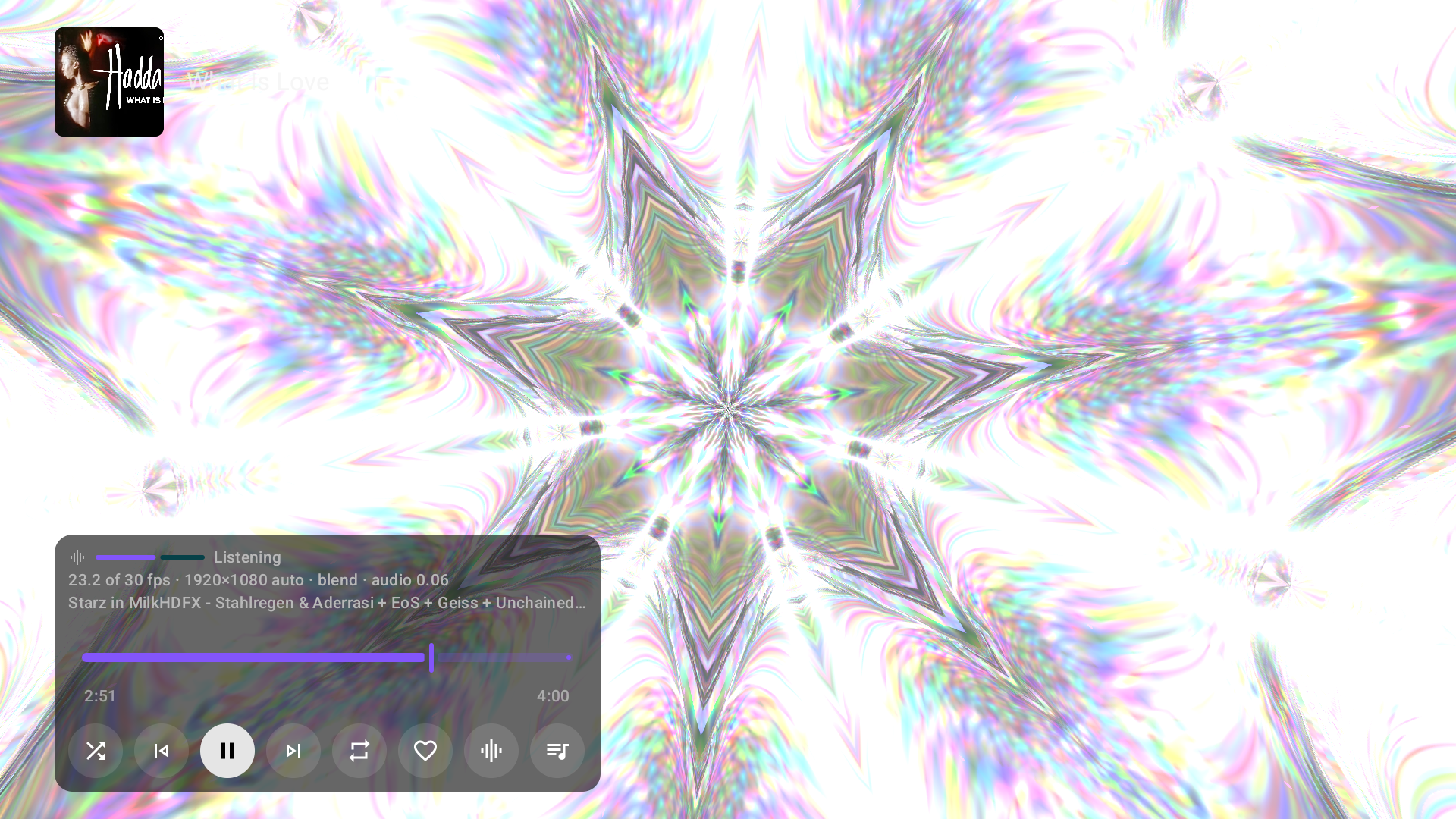
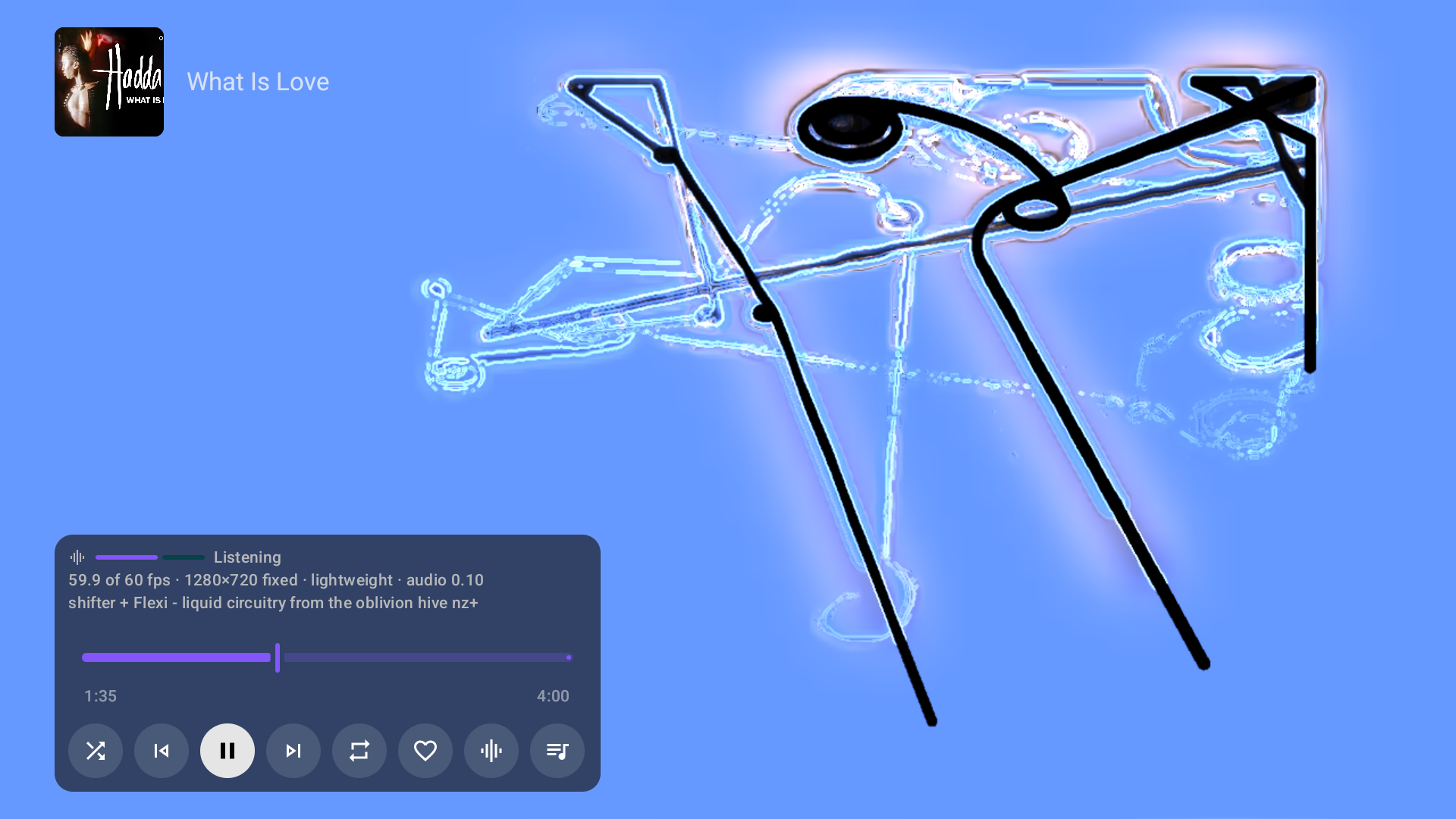
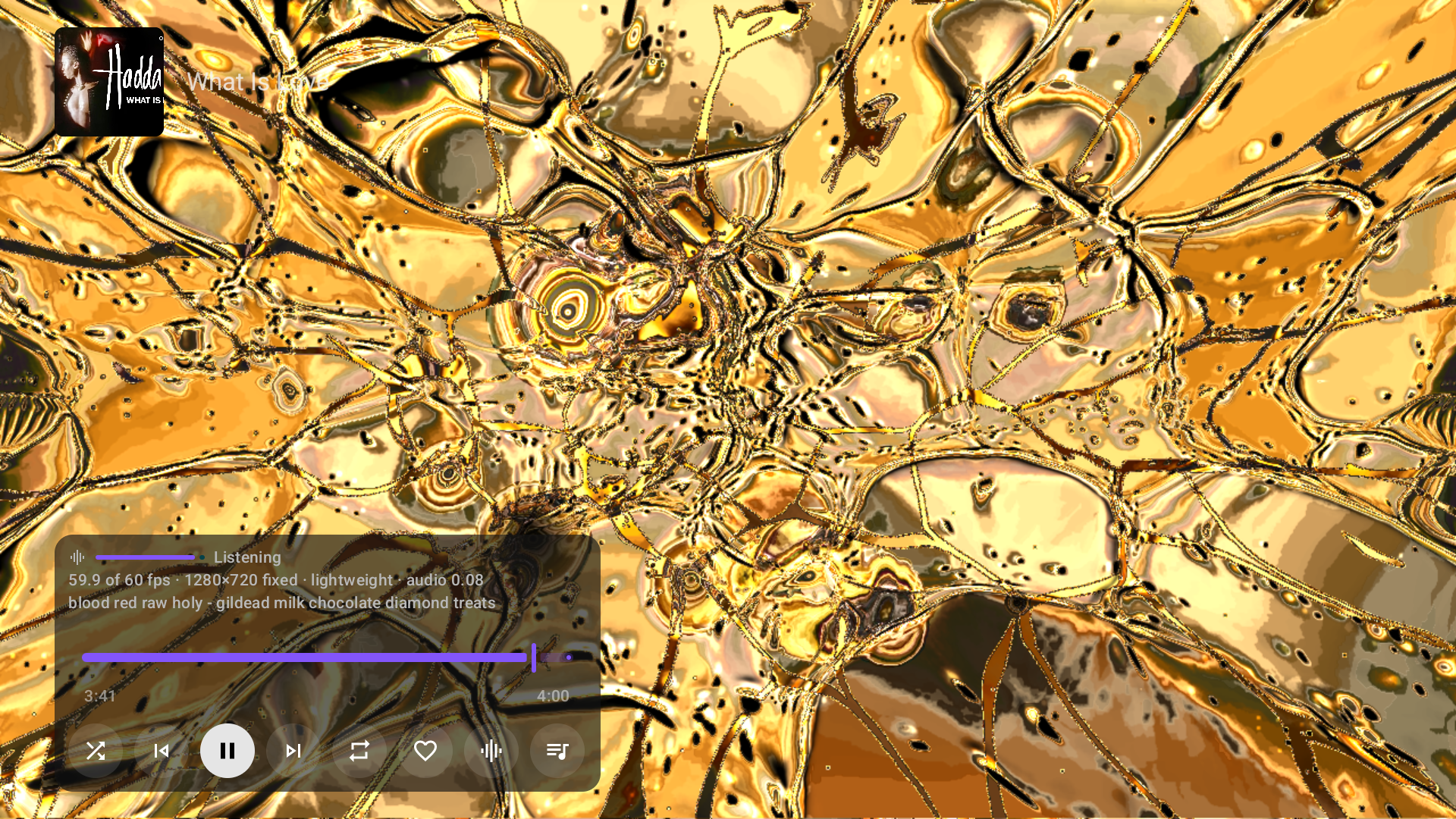
With Show diagnostics on, the player controls show the measured and target frame rate, the render size and whether it is automatic, the transition state, the audio level and the preset name. Use it when investigating slow visuals: a still screenshot says nothing about frame rate.
What the main options look like
With Transition style on Lightweight, presets cut and the old one fades out on top; diagnostics read lightweight instead of blend. With Change presets automatically off, a preset stays until you press Left or Right. With Cut on loud beats on, a loud beat can cut to the next preset before its time is up.
When the visuals misbehave
Most visual problems are the same as in the standalone app. ProjectM TV's troubleshooting covers stutter, a render size below the TV's, black, frozen or skipped presets and presets that look different from MilkDrop. Milkbeat-specific checks are in Troubleshooting. If Milkbeat closes when one preset changes into the next, see The app closes at preset changes.
The engine needs OpenGL ES 3.0; on a device without it, Settings → Visualizations reports that it can't run the visualizer. At least 2 GB of RAM is recommended.