Settings reference
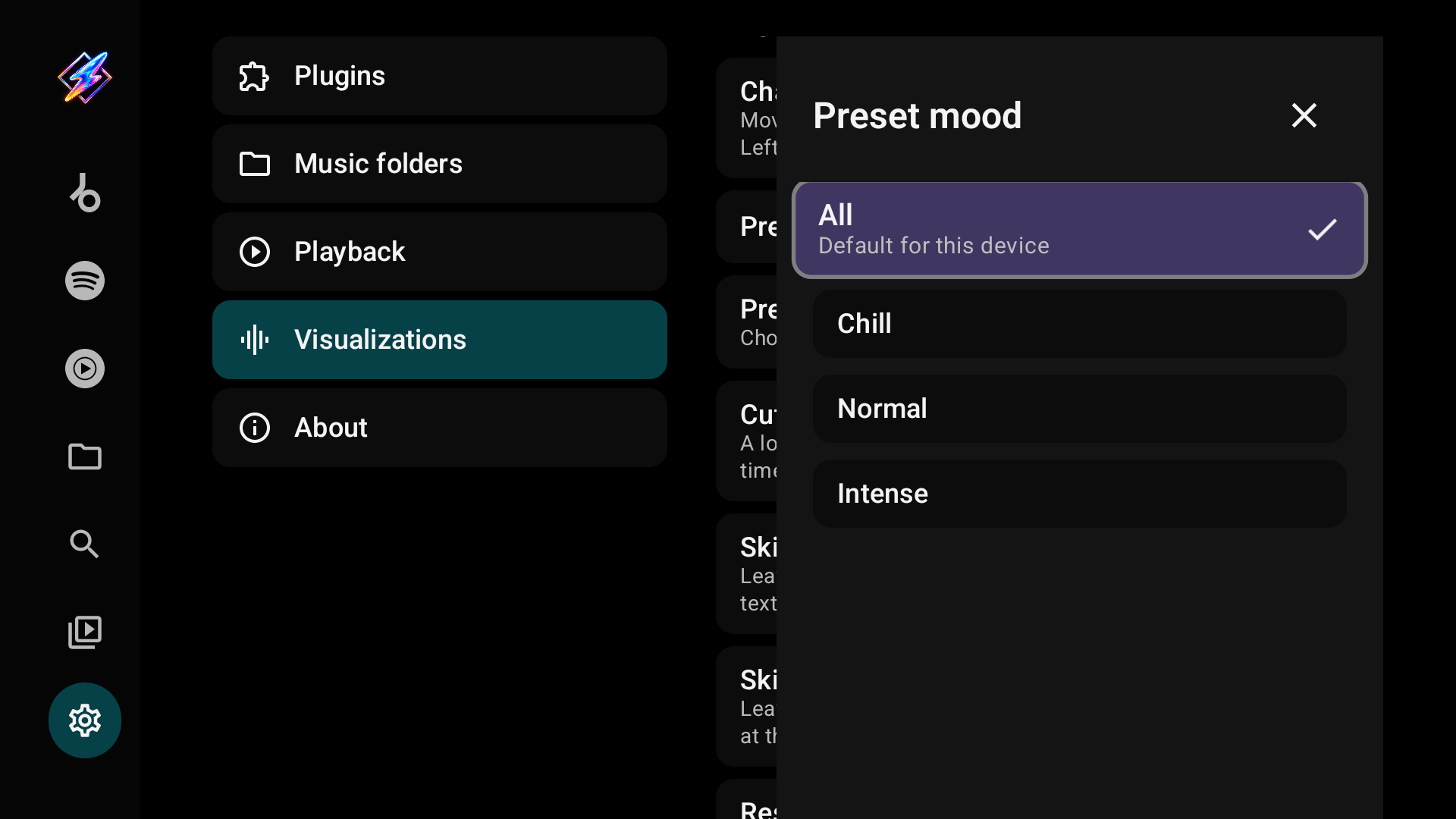
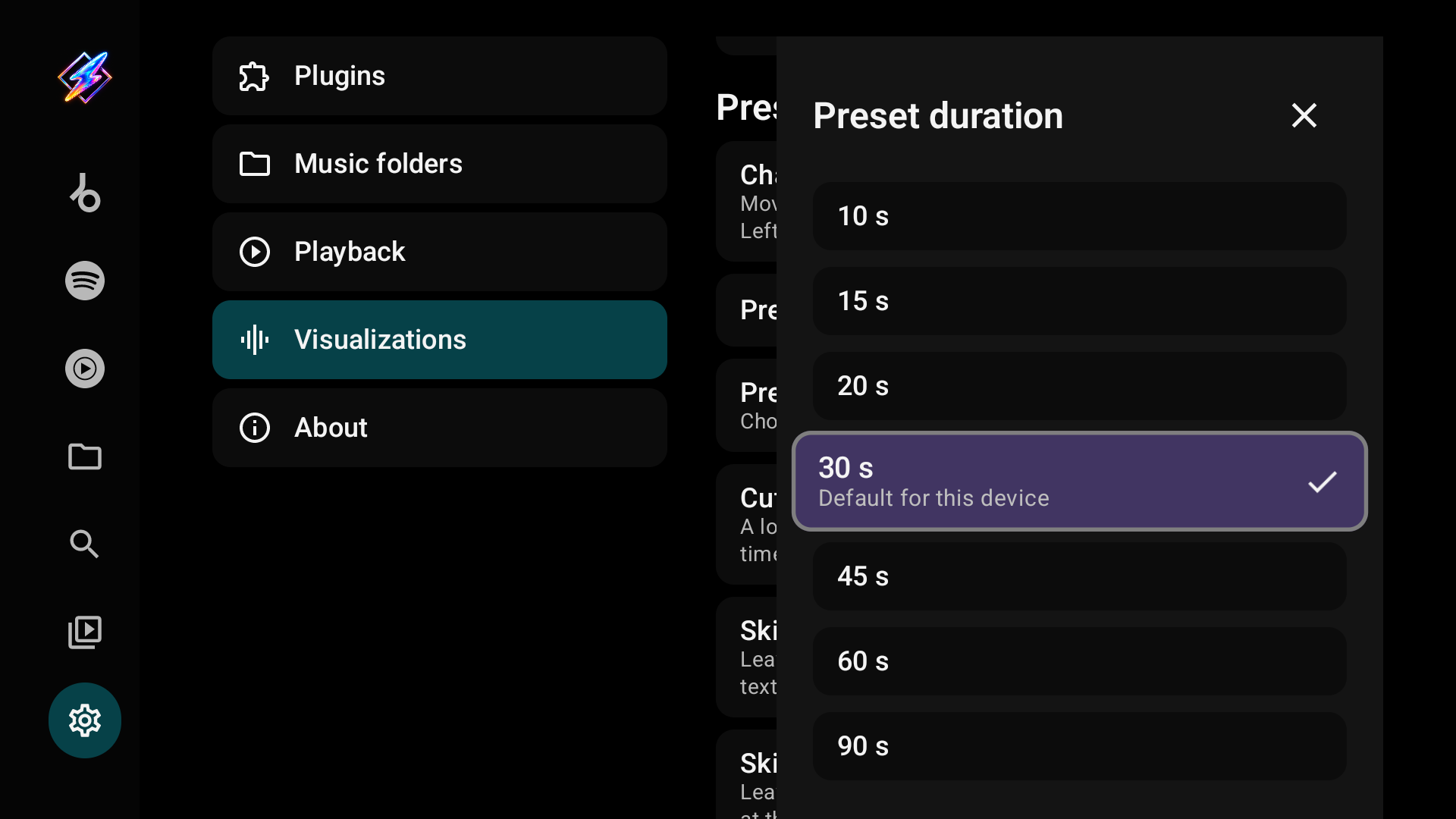
Settings has five categories on the left: Plugins, Music folders, Playback, Visualizations and About. Their controls are on the right. Back closes a page opened inside a category, such as audio priority, a plugin's details, an install review or a folder editor, and then leaves Settings; selecting the category again also returns to its first page. Pickers open as a side panel that Back closes, with the default for your device marked.
Plugins
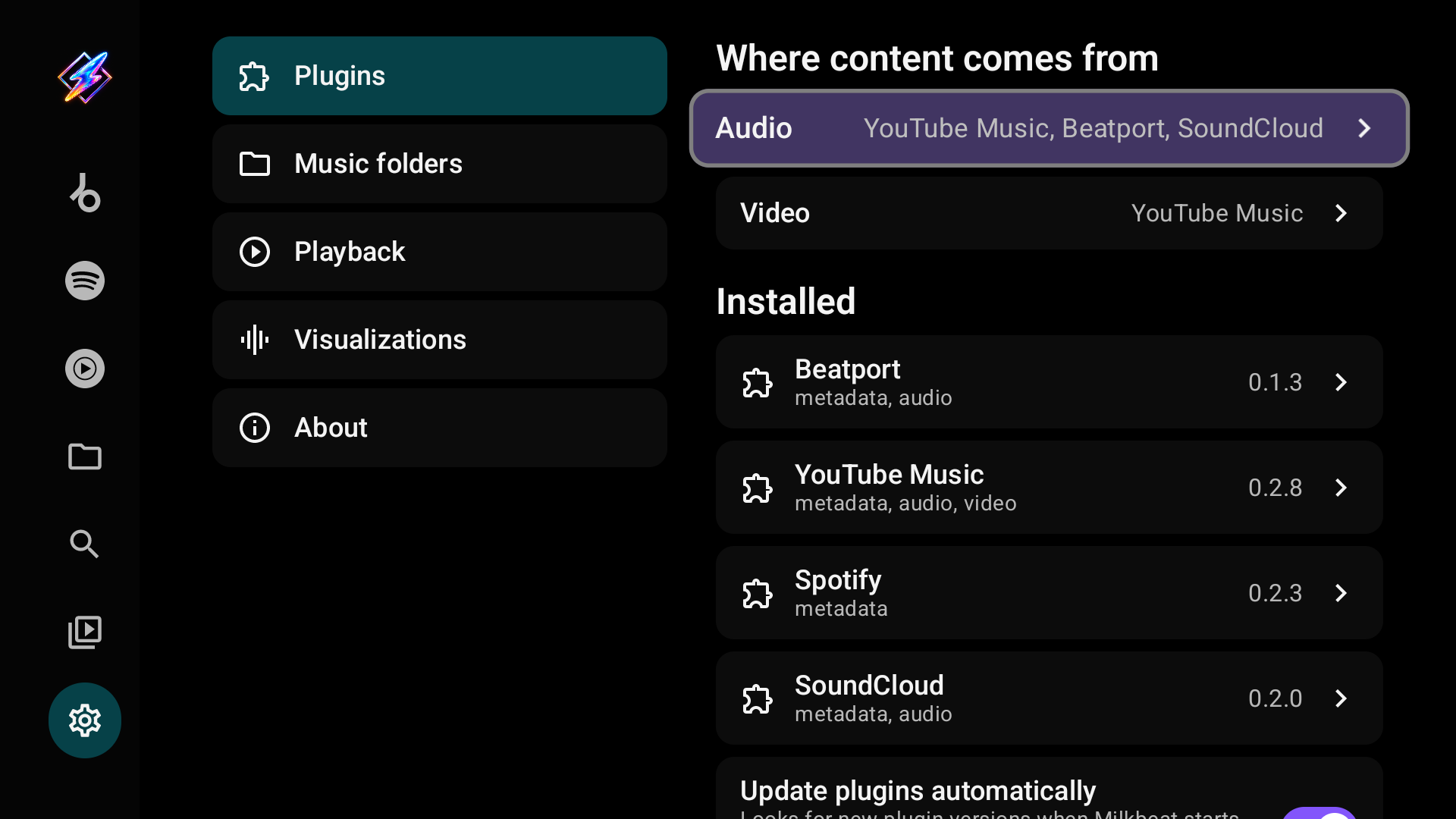
| Item | What it does |
|---|---|
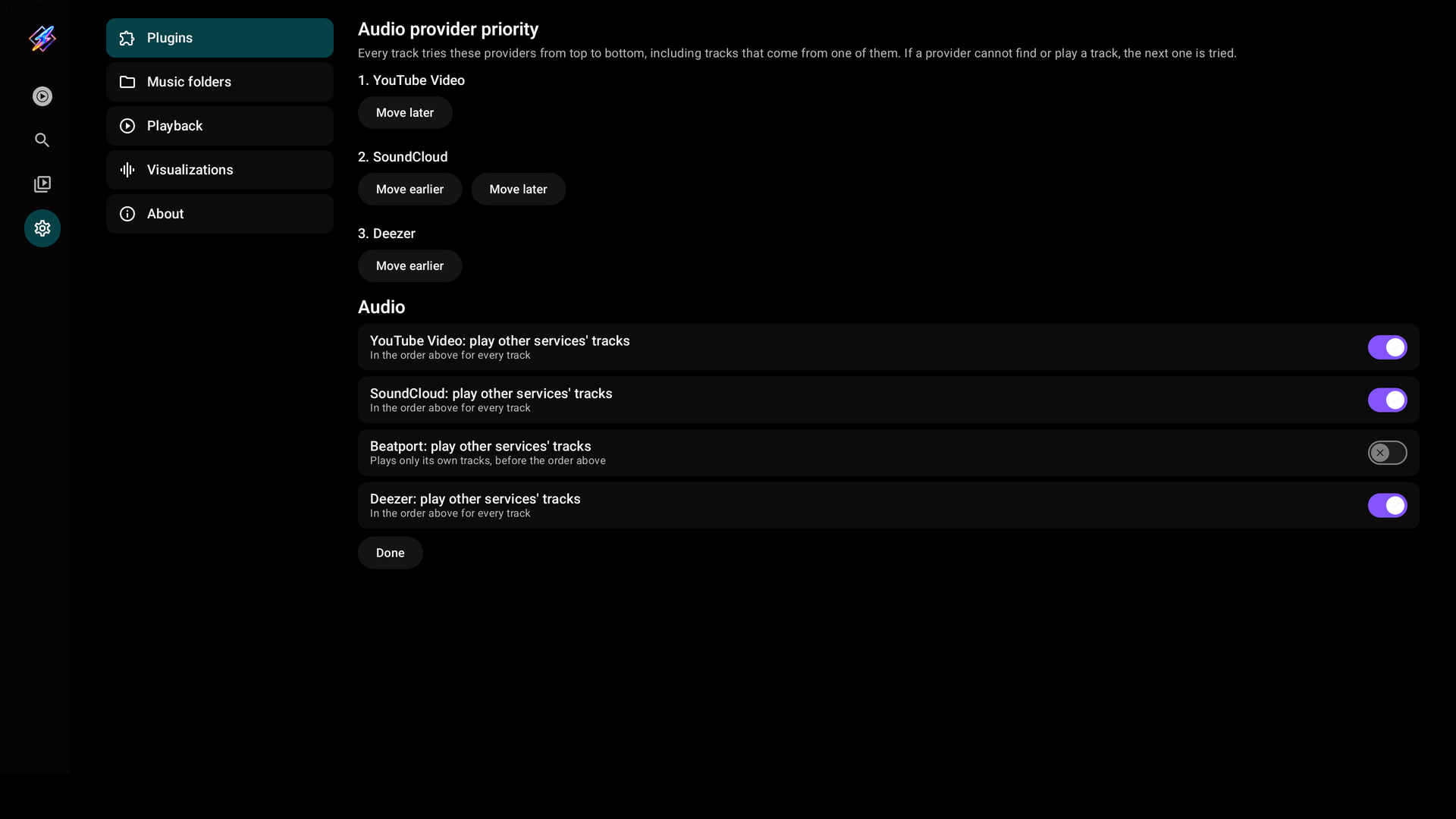
| Audio | The order every track tries the audio providers, and which providers play only their own tracks. Set audio priority |
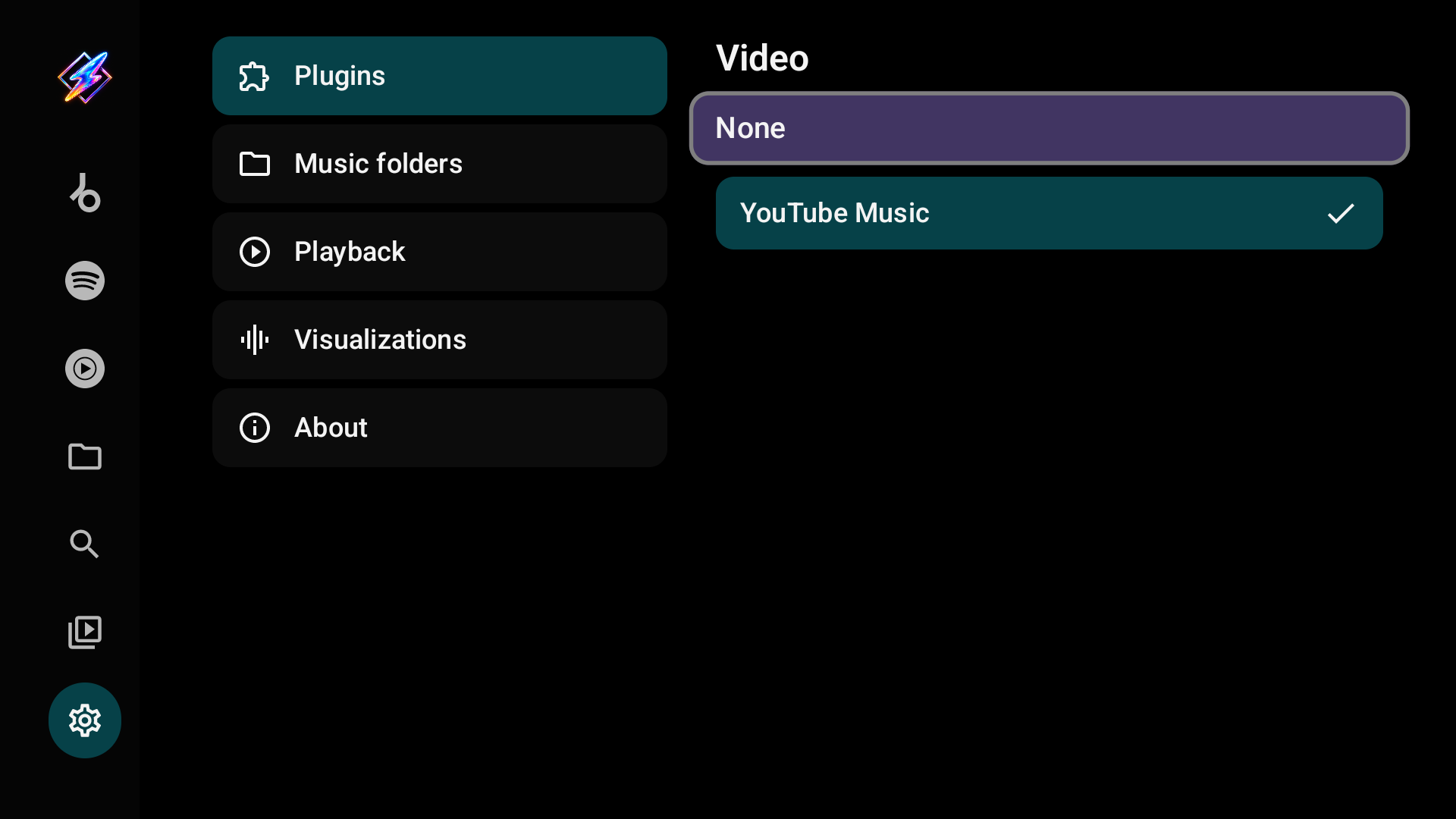
| Video | The plugin that supplies videos, or None |
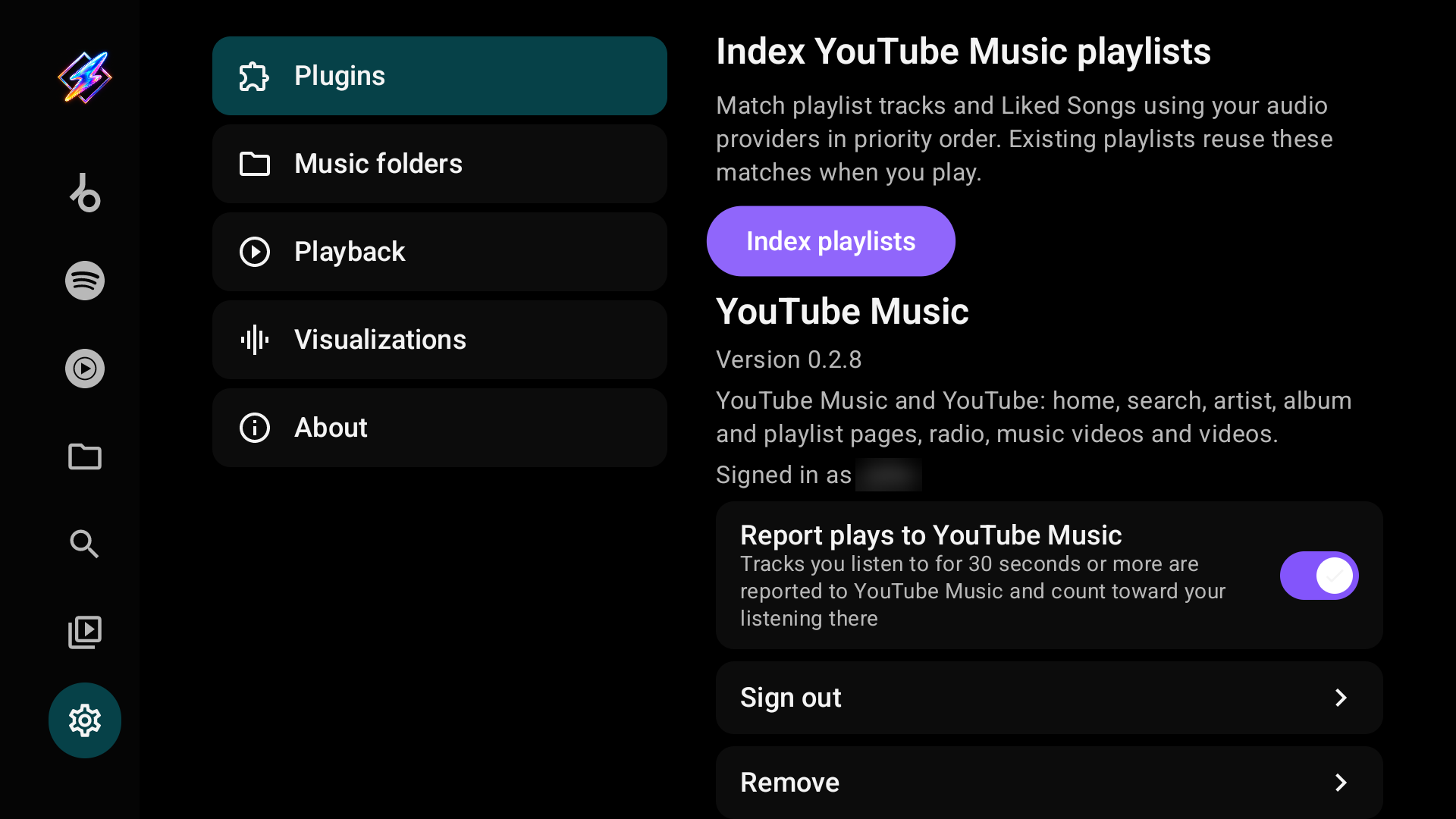
| Installed | Each plugin with its capabilities (metadata, audio, video) and version. Select one for its details: account, sign-in (with Download MicroG-RE-TV for a Google-account plugin while signed out, in the GitHub build), play reporting, playlist indexing and Remove. A retired plugin's details say so and offer Add YouTube until YouTube is installed |
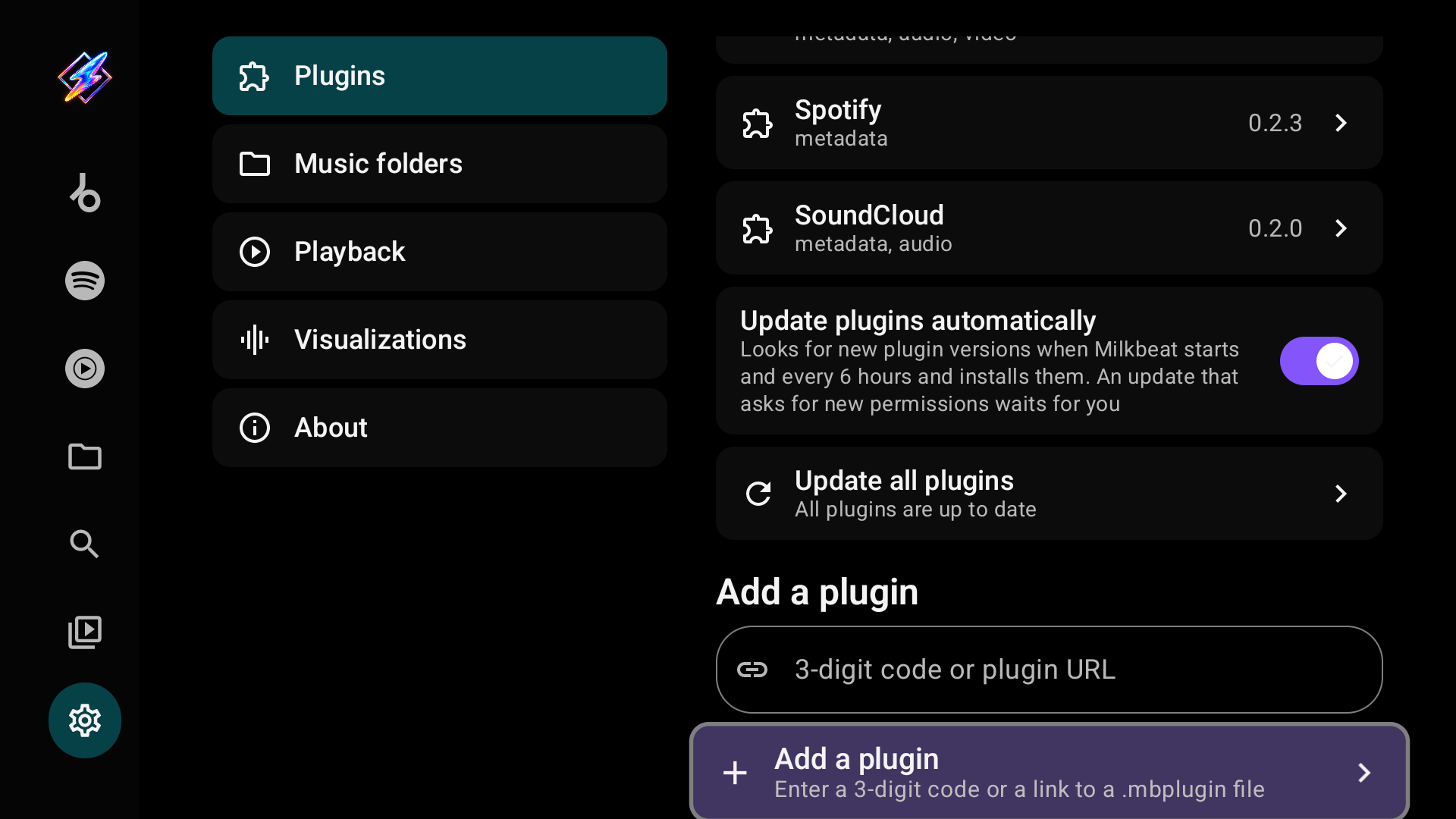
| Update plugins automatically | On by default: checks at start and every 6 hours and installs updates; updates asking for new permissions wait for review |
| Update all plugins | Checks and installs updates now. An update that needs a newer Milkbeat waits; in the GitHub build its row opens About to update the app. Updates that need a newer Milkbeat |
| Add a plugin | A three-digit code or plugin URL. Install a plugin |
There is no Metadata option: each catalog you can use has its own music tab.
Music folders
| Item | What it does |
|---|---|
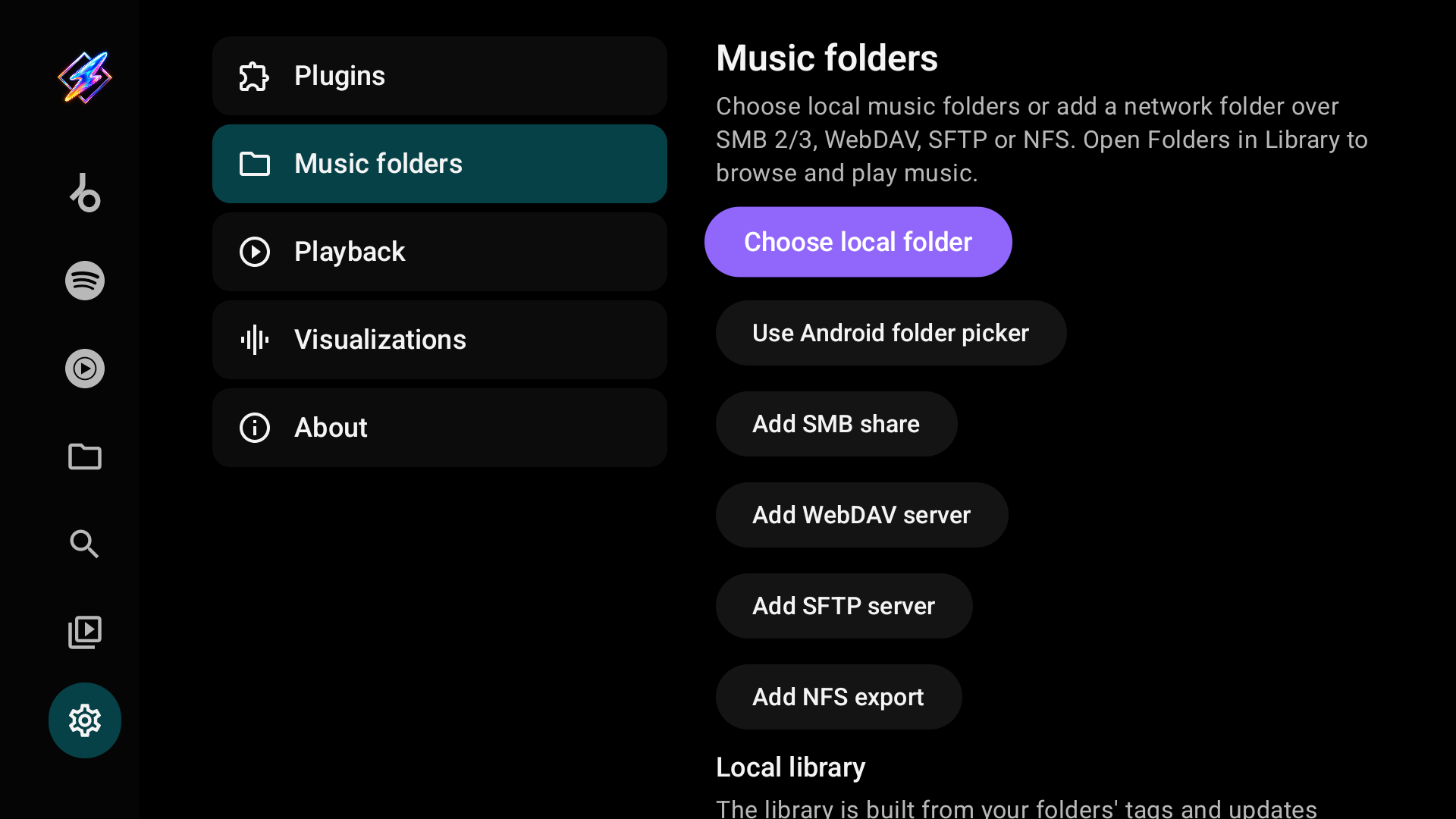
| Choose local folder | Milkbeat's D-pad browser for the TV's storage and USB drives. Storage access is asked for only here |
| Use Android folder picker | The system picker, granting access to one folder only |
| Add SMB share / WebDAV server / SFTP server / NFS export | A network source; each has Test access and Save |
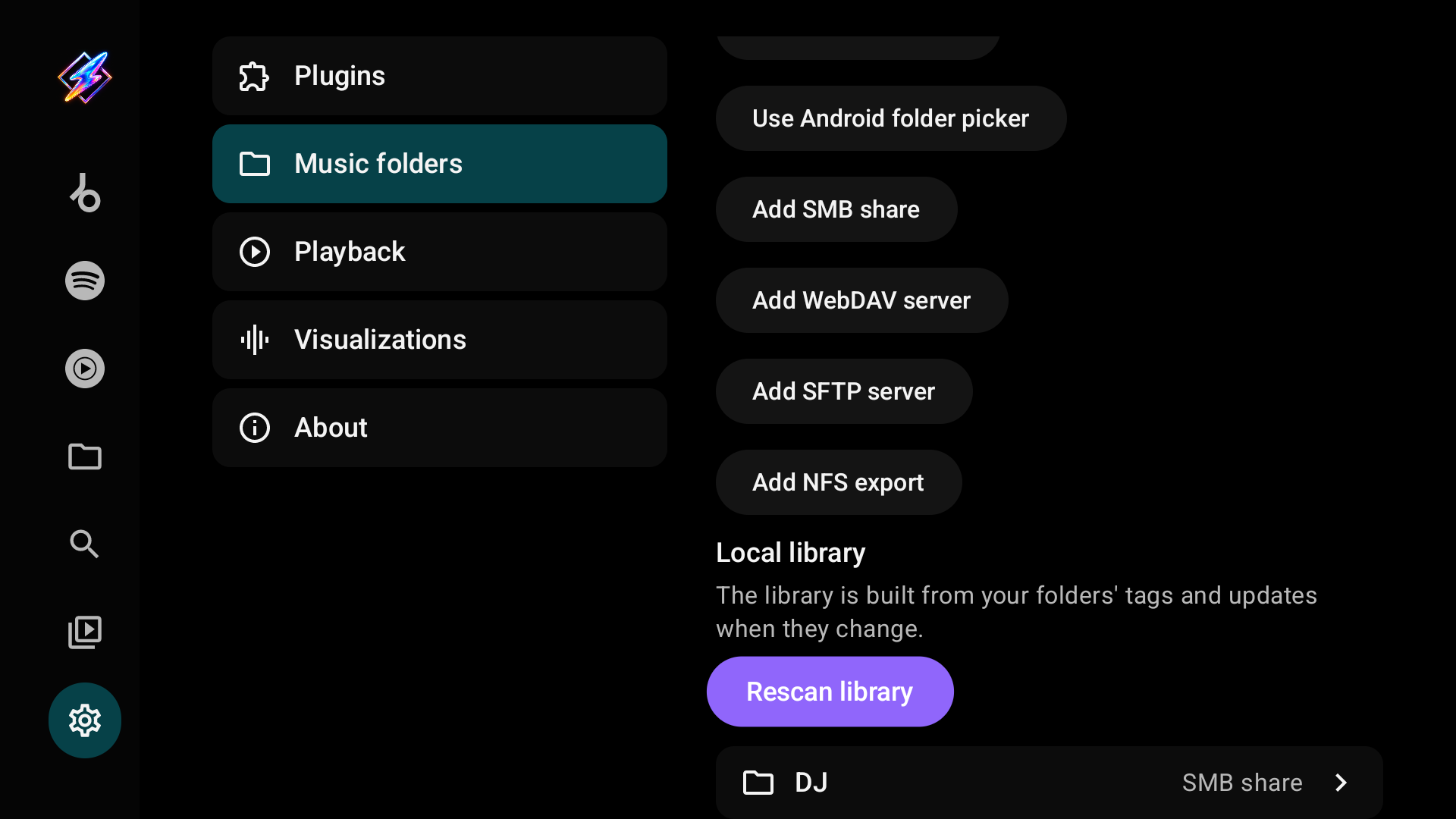
| Local library → Rescan library | Scans every source now; the index otherwise updates when sources change and at start when older than six hours |
| Saved sources | Each source with its type. Select one to edit it or Remove folder |
See Local and network folders for every field and server requirement.
Playback
| Setting | What it does |
|---|---|
| Background Play | Keep playing when Milkbeat is in the background. On by default |
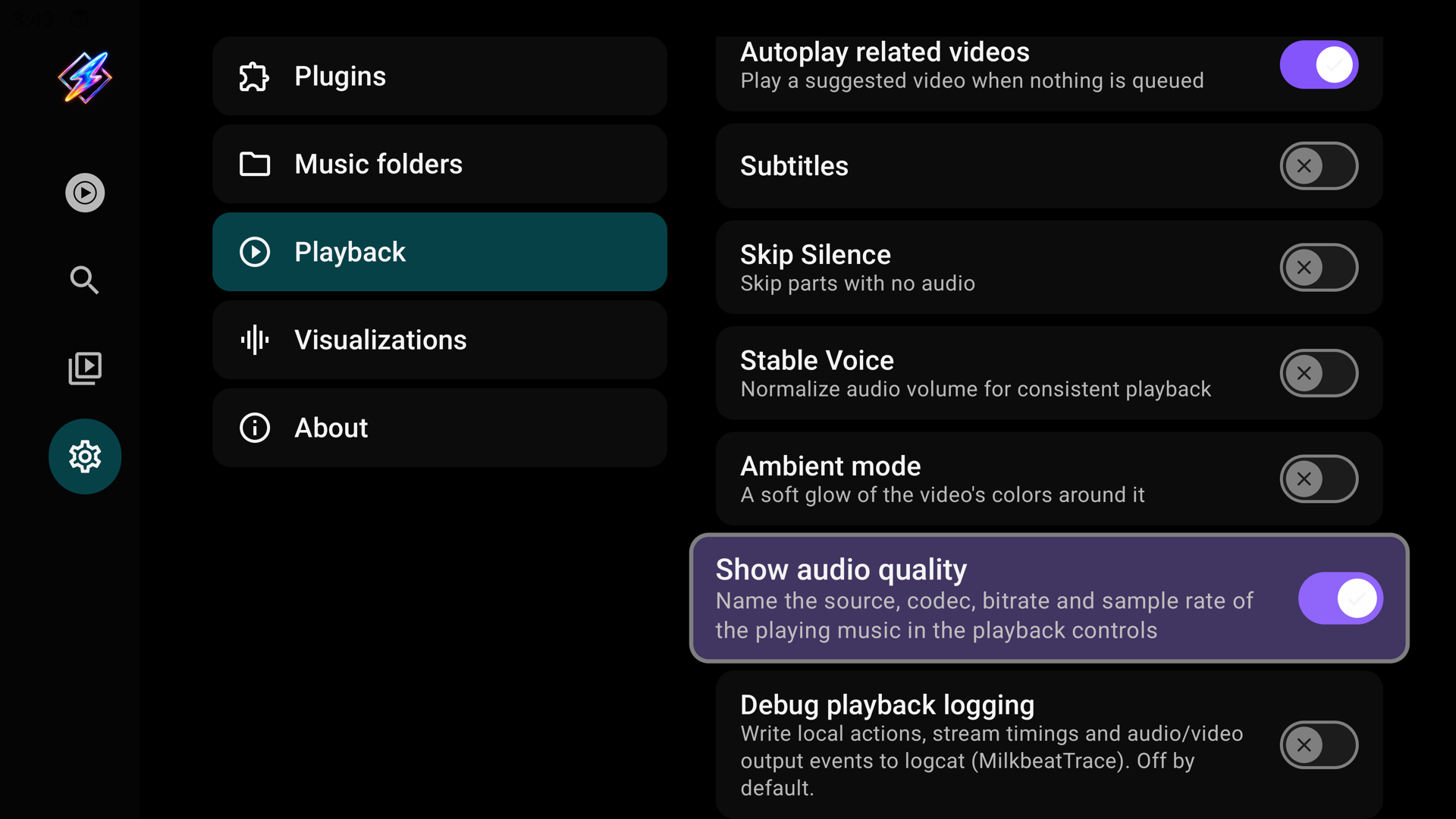
| Autoplay related videos | Play a suggested video when nothing is queued |
| Subtitles | Show subtitles on videos by default |
| Skip Silence | Skip parts with no audio |
| Stable Voice | Normalize audio volume for more consistent playback |
| Ambient mode | A soft glow of the video's colours around it |
| Show audio quality | Name the source, codec, bitrate and sample rate of the playing music in the player controls. Off by default; saved on this device only. See Audio quality |
| Debug playback logging | Write local actions, resolution, request timings and playback output events to Android logcat. Off by default; saved on this device only |
Video quality and codec are picked automatically for your TV and the available streams, and SponsorBlock is always on for supported videos; neither has a setting.
Visualizations
The ProjectM TV engine's settings, applied to Milkbeat's own visualizer. Changes apply the next time now playing shows the visualizer. The visualizer page explains what each one does, with links to ProjectM TV's in-depth guide.
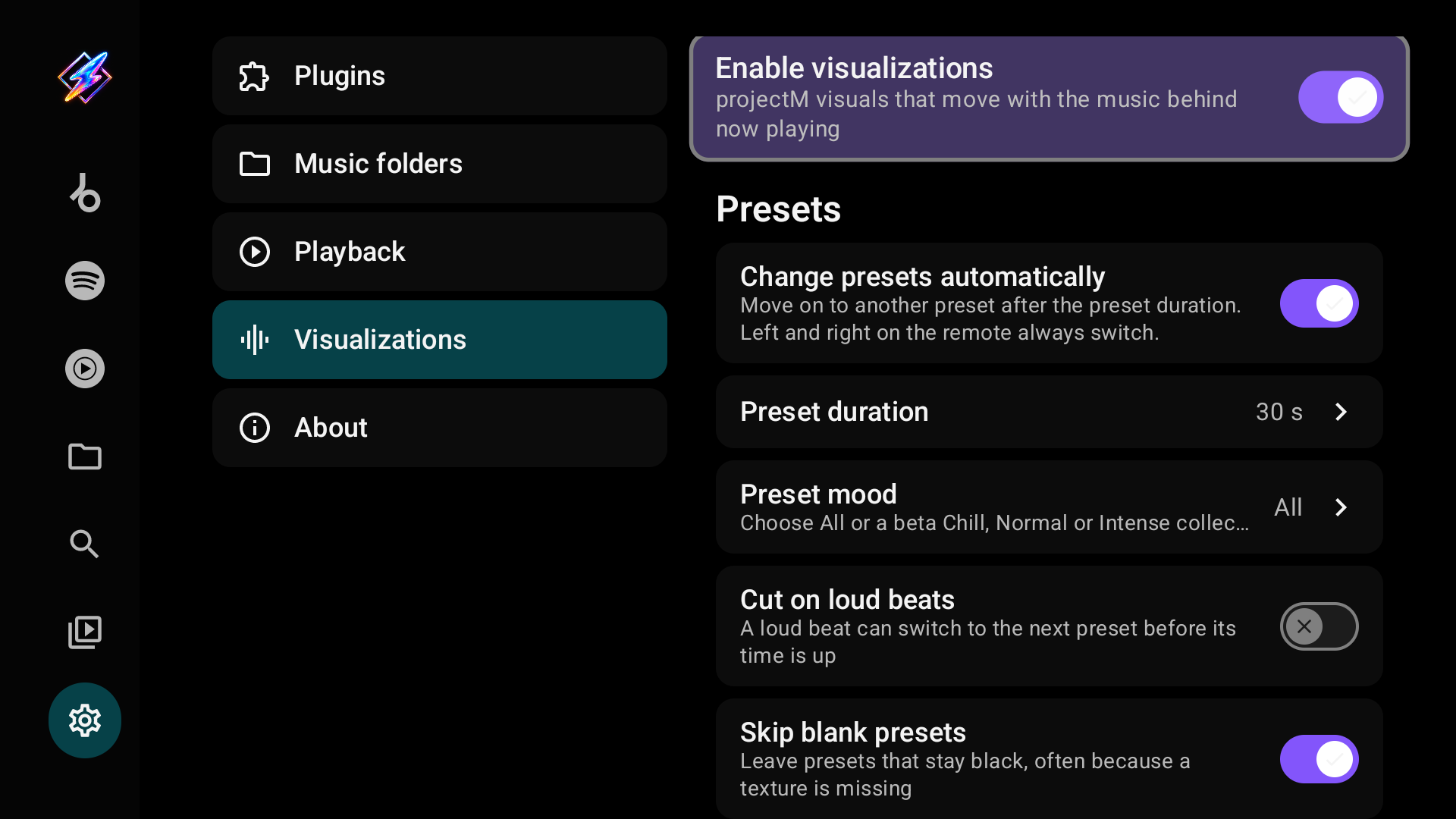
Presets
| Setting | What it does | Default |
|---|---|---|
| Enable visualizations | projectM visuals behind now playing | On with about 2 GB of RAM or more |
| Change presets automatically | Move on after the preset duration; Left and Right always switch | On |
| Preset duration | 10, 15, 20, 30, 45, 60 or 90 s | 30 s |
| Preset mood | All, or the beta Chill, Normal and Intense collections | All |
| Cut on loud beats | A loud beat can switch to the next preset early | Off |
| Skip blank presets | Leave presets that stay black, often because a texture is missing | On |
| Skip slow presets | Leave presets far below the frame rate even at the lowest resolution | On |
| Reset skipped presets | Shows how many presets were skipped; select to bring them back | — |
Transitions and picture quality
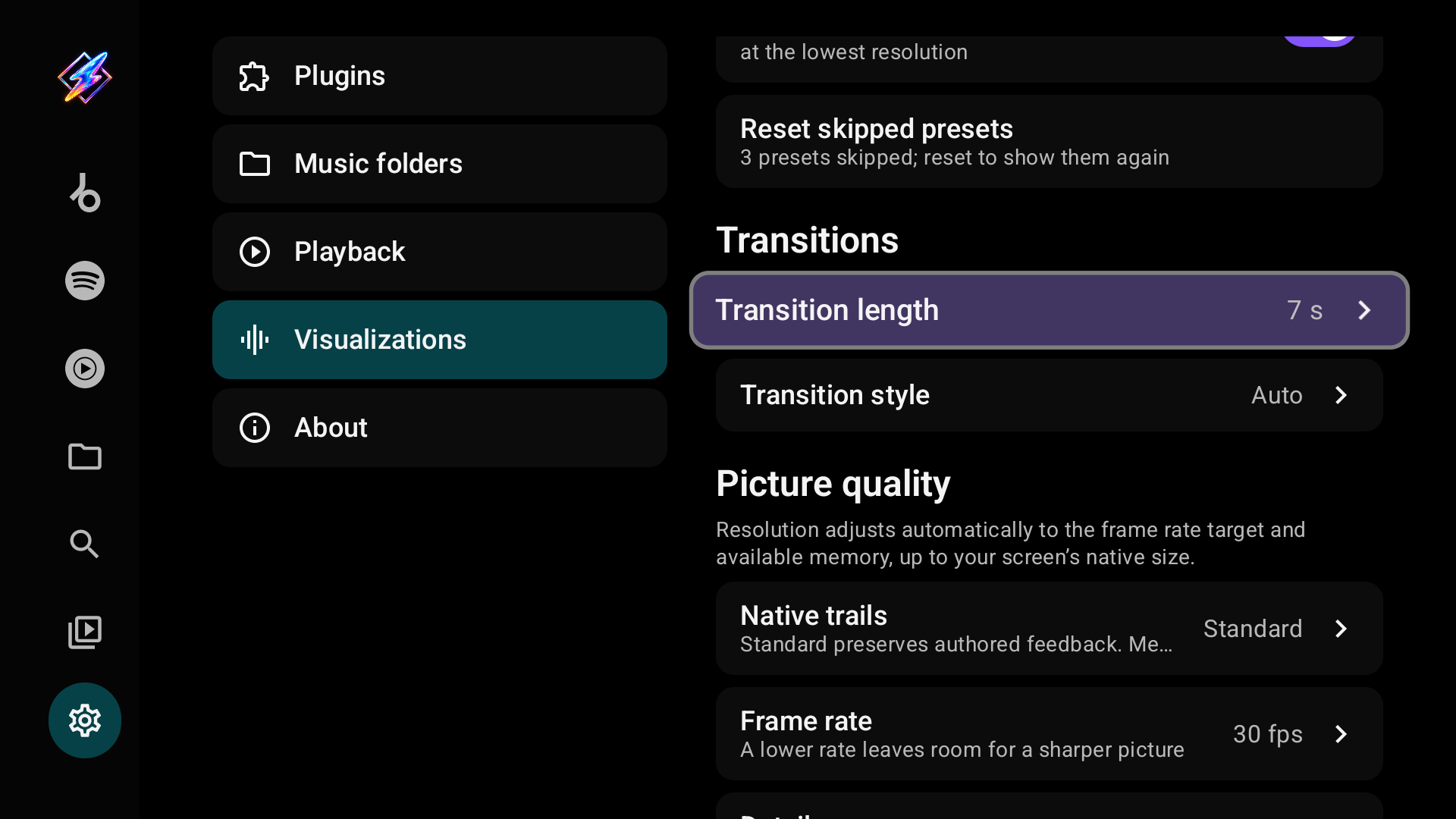
| Setting | What it does | Default |
|---|---|---|
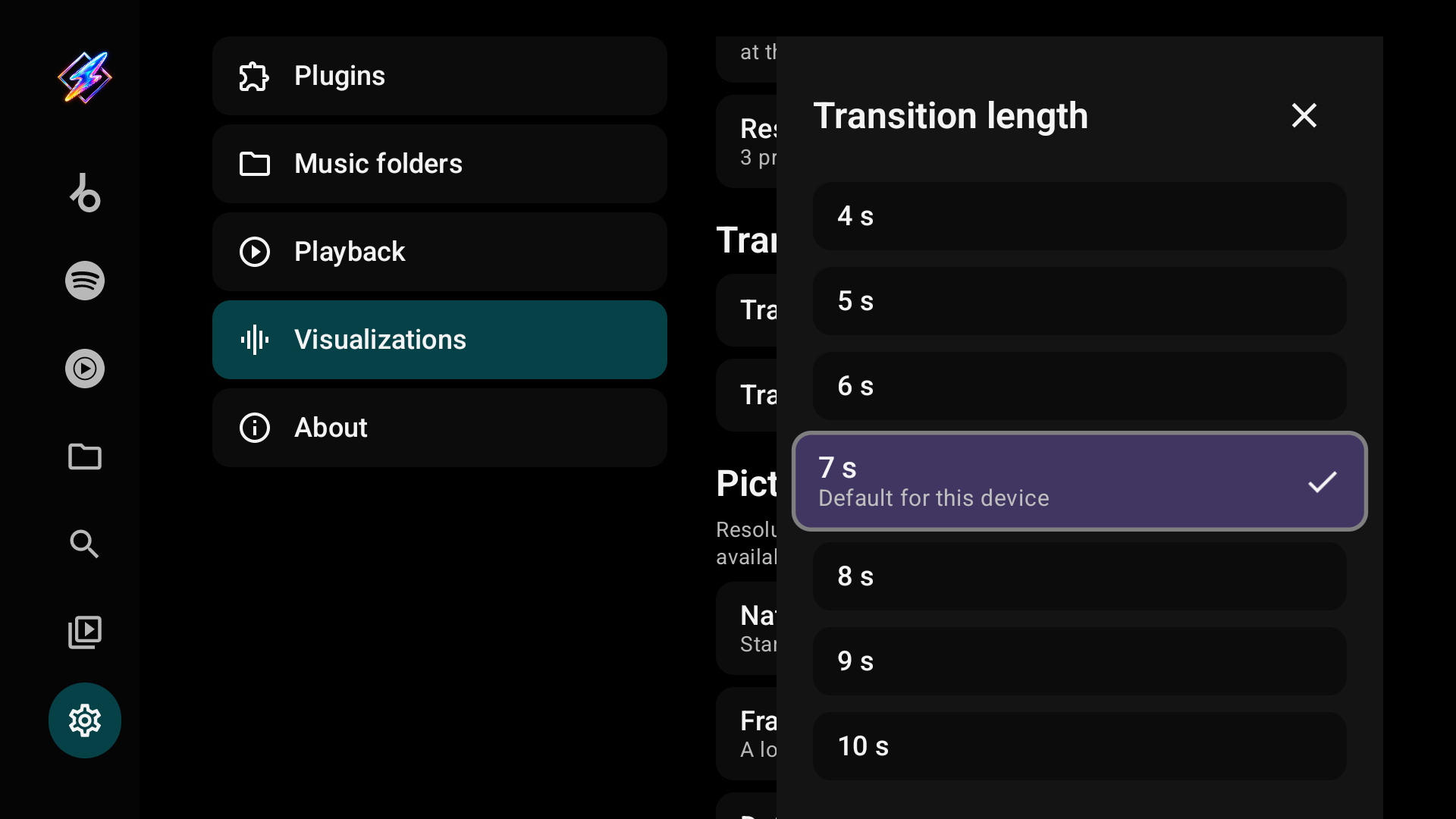
| Transition length | Instant to 10 s; two presets render during a blend | 7 s (2 s on low-RAM devices) |
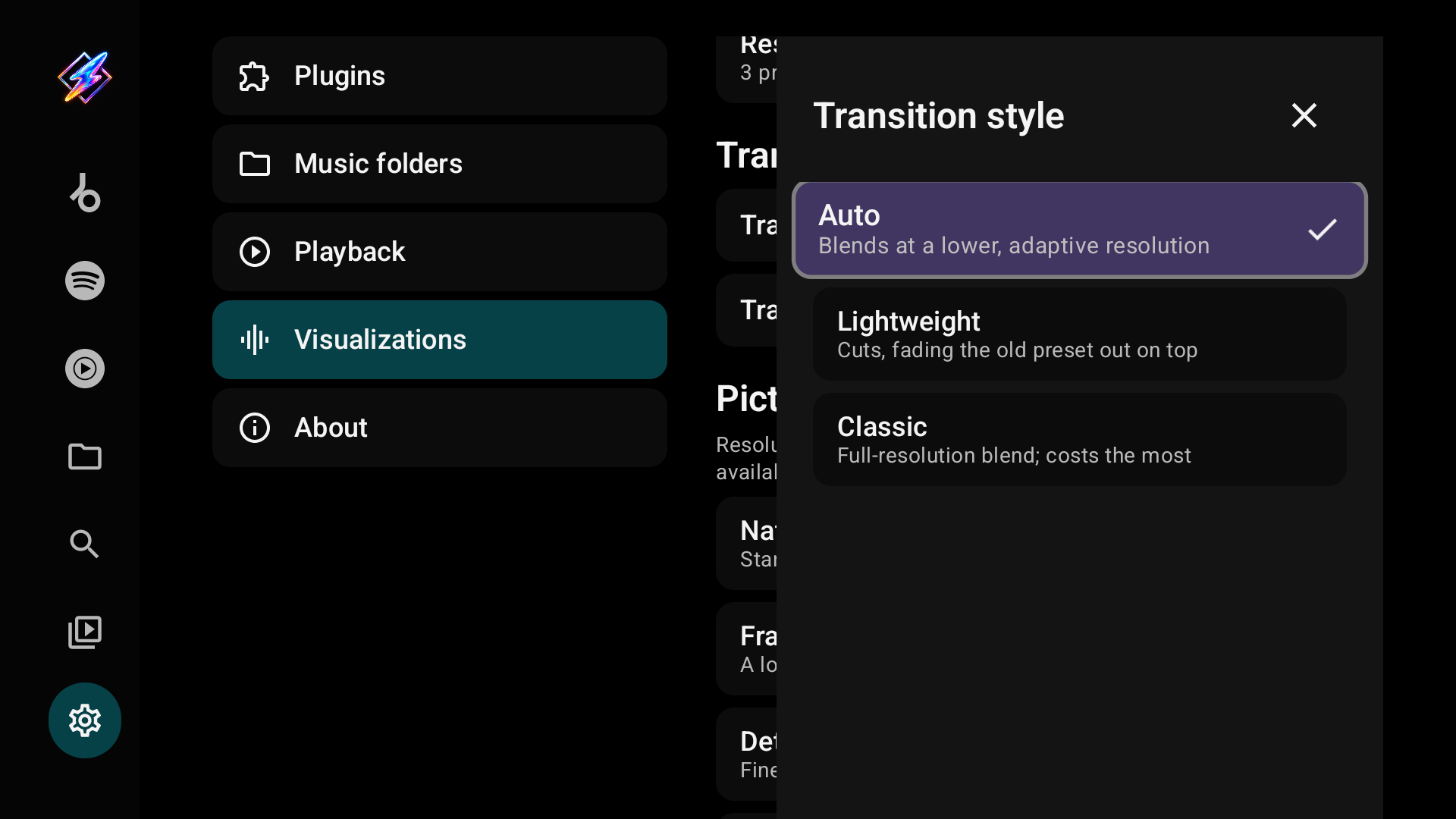
| Transition style | Auto blends at a lower, adaptive resolution; Lightweight cuts and fades the old preset out on top; Classic is a full-resolution blend and costs the most | Auto |
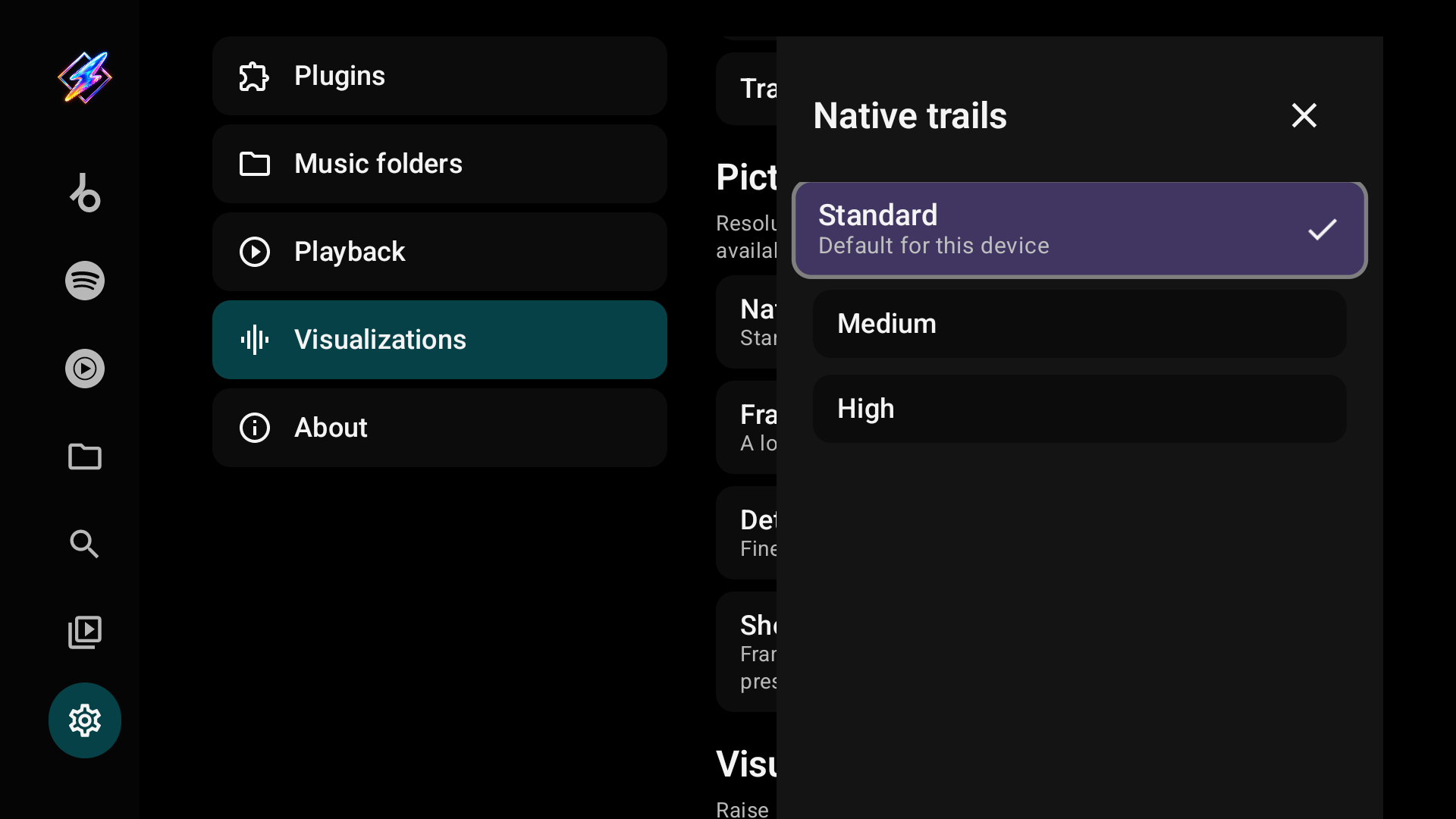
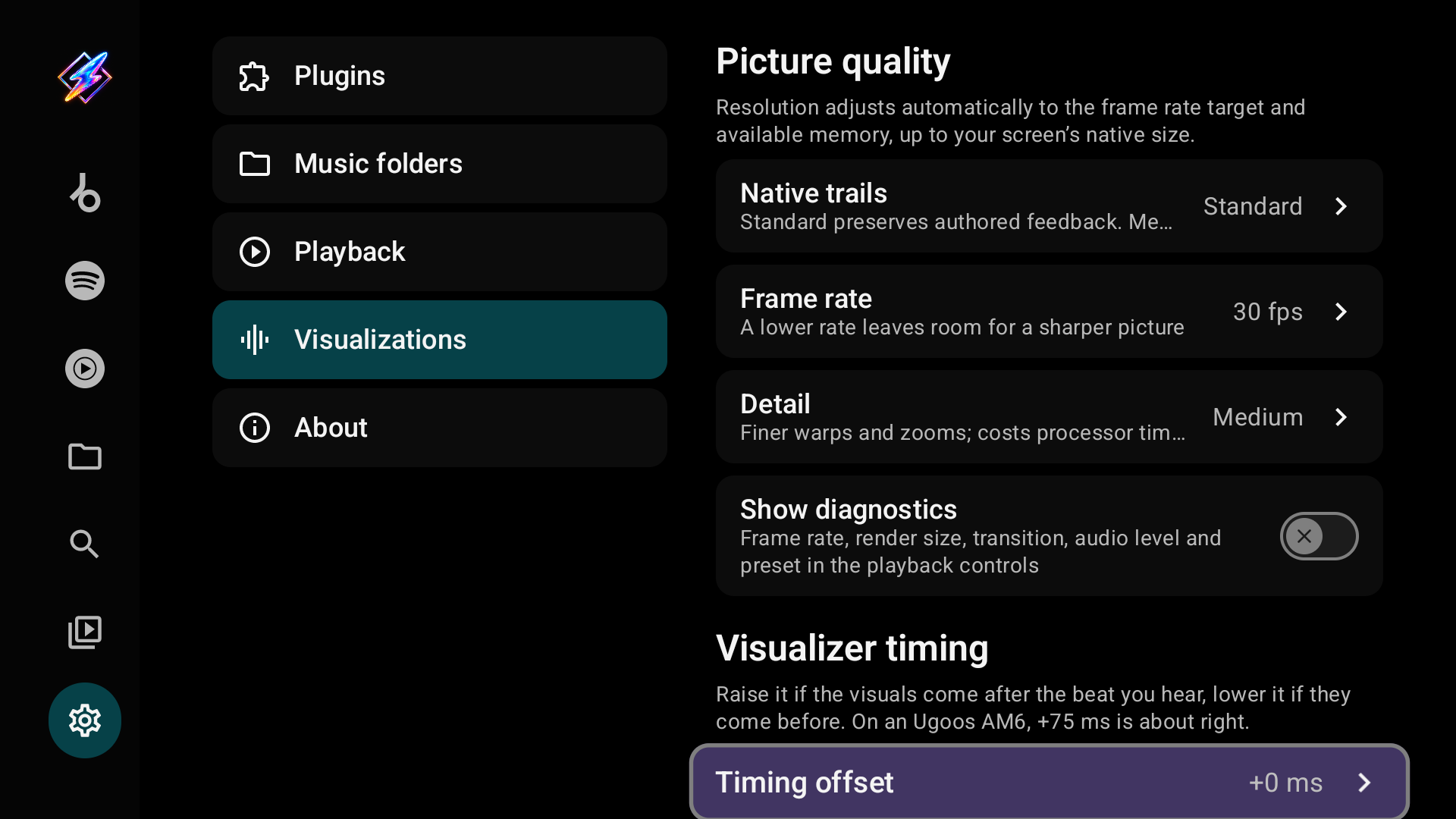
| Native trails | Standard keeps authored feedback; Medium and High add trail detail above 1330p at extra GPU cost | Standard |
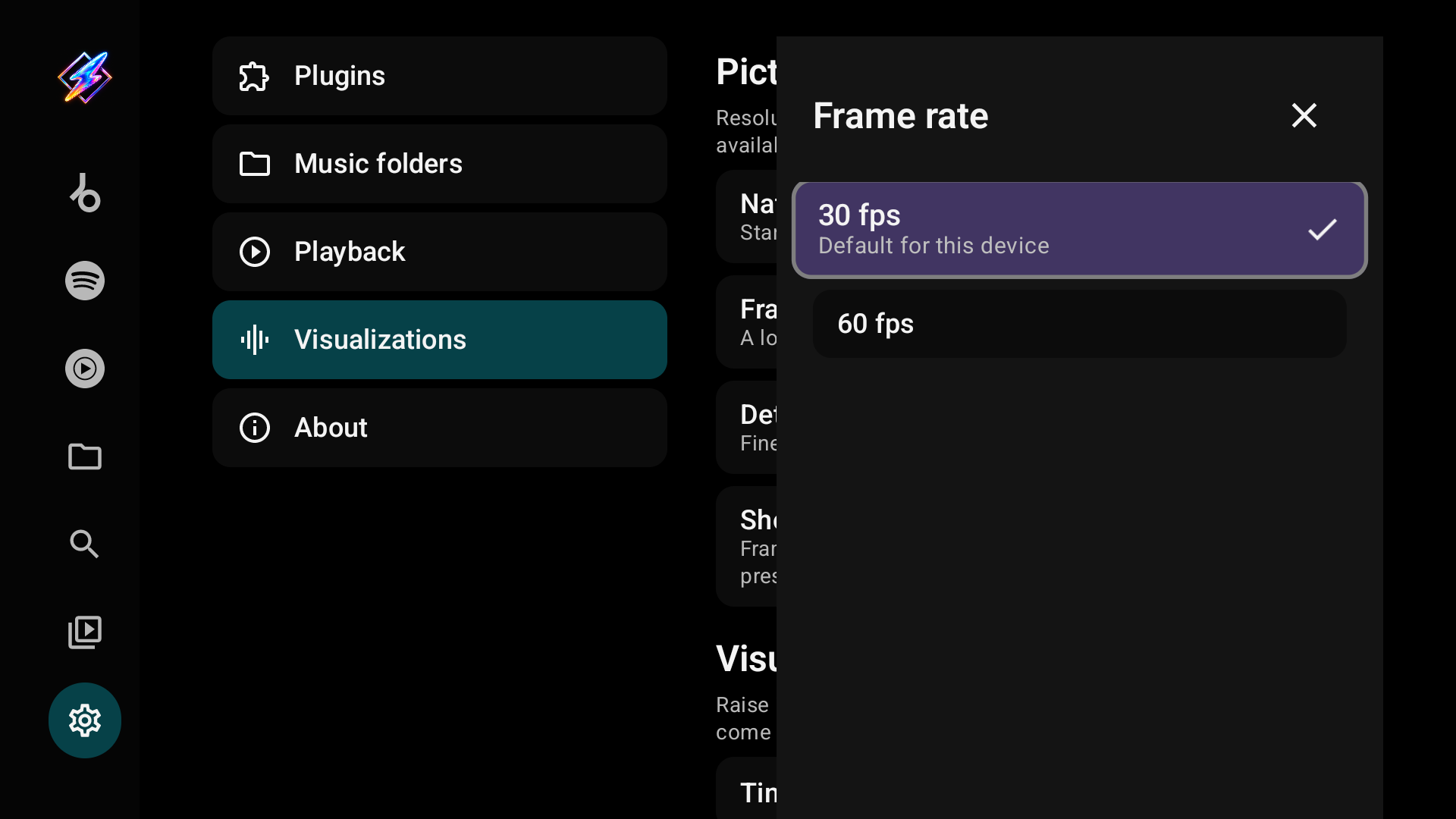
| Frame rate | The display rate divided by 1, 2 or 4, at least 24 fps. A lower rate leaves room for a sharper picture | 30 fps |
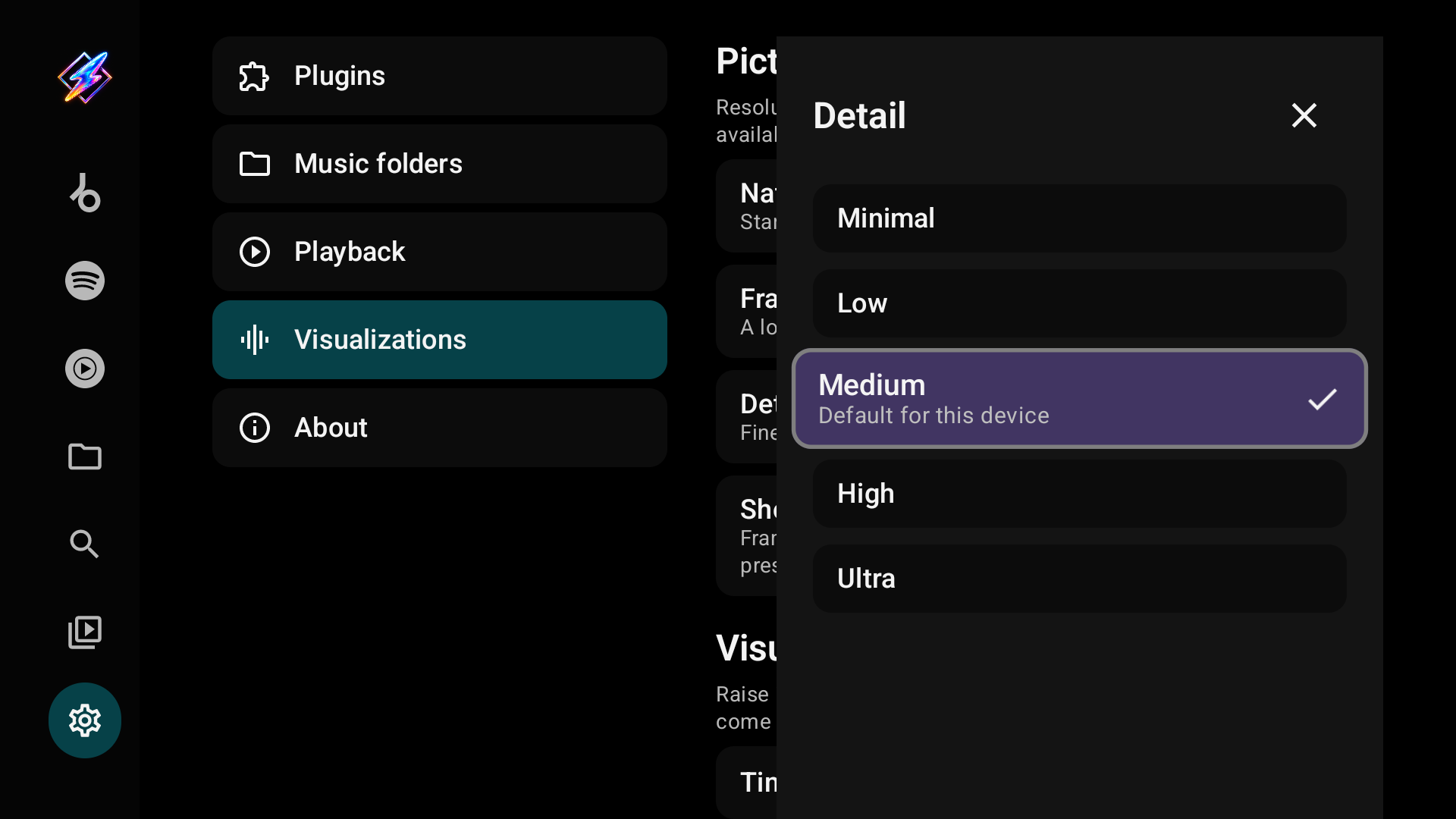
| Detail | Warp mesh from Minimal to Ultra: finer warps and zooms for more processor time | By device (Medium here) |
| Show diagnostics | Frame rate, render size, transition, audio level and preset in the playback controls | Off |
Resolution is always automatic: it follows the frame-rate target and live memory headroom up to the screen's native size, including 4K. Previously saved fixed resolutions and memory toggles no longer apply.
Visualizer timing
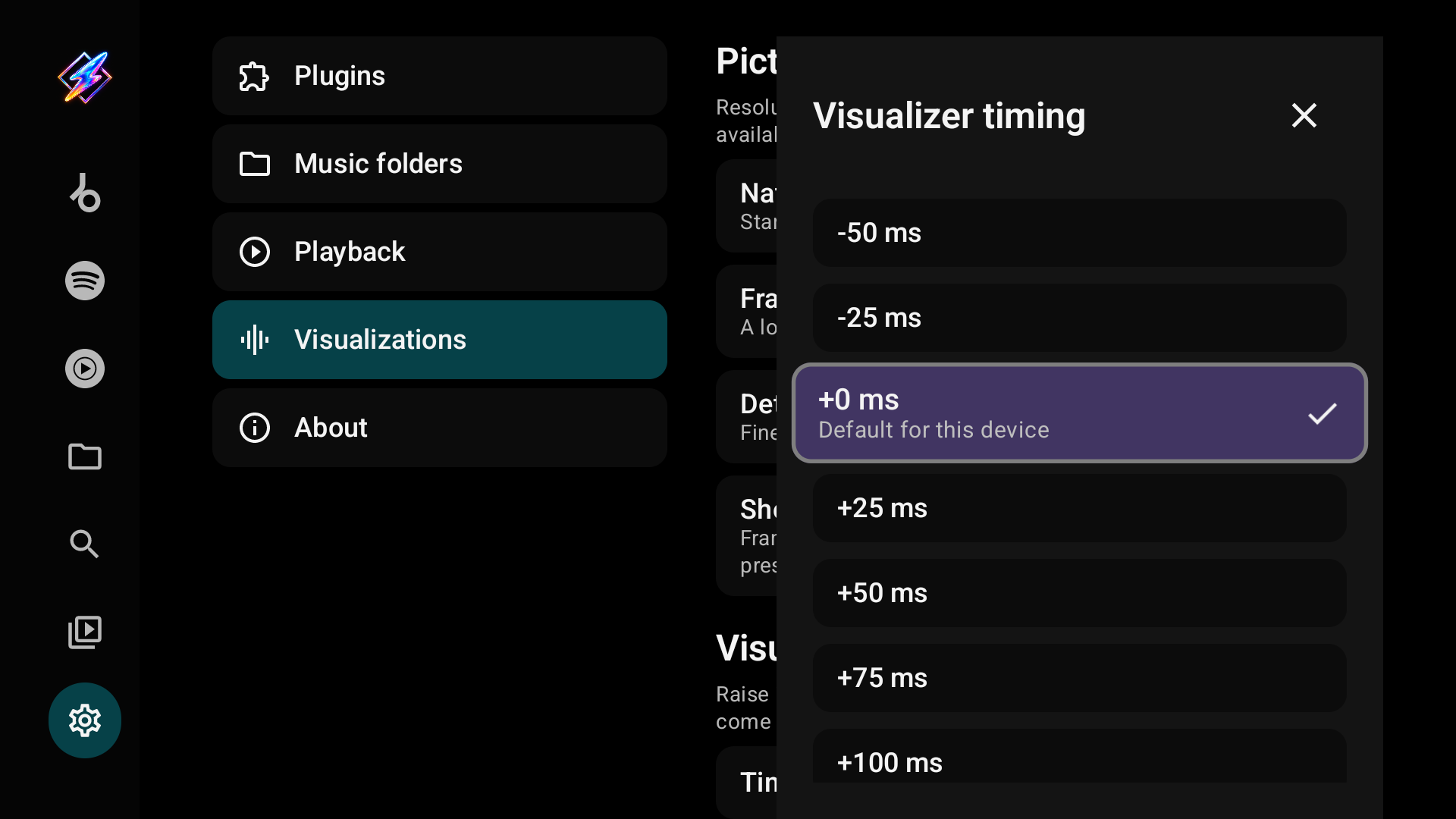
Timing offset moves the visuals against the sound. The choices are −100, −50, −25, +0, +25, +50, +75, +100, +150 and +200 ms. Raise it if the visuals come after the beat you hear, lower it if they come before.
Troubleshooting
Check Last exit when the visualizer closes unexpectedly. Background compilation and shader binary caching run automatically; their former troubleshooting switches have been removed, and saved Off choices are ignored.
| Setting | What it does | Default |
|---|---|---|
| Last exit | The latest saved native crash or relevant Android exit, with how long ago. Select it for the exit report; Android exit records need Android 11, saved native reports do not | — |
Recent exits, the exit report, starts with the device, its Android version, the GPU (once the visualizer has shown since Milkbeat started) and native capture status. Then come up to five recent exits of Milkbeat, newest first. Each shows how long ago it was and why it ended, as Android recorded it: for example crashed (native code), killed by signal 11 (SIGSEGV) or killed for low memory. It also shows whether Milkbeat was on screen, playing in the background or only in the background, Android's description and the memory in use when Android provides them. For a process that showed the visualizer, the report preserves any recorded switch states and adds what the engine was last doing: the render line (loading, blending into or showing a preset) and the prewarm line (compiling a preset in the background, or idle), each with the seconds before the exit. Android 10 and older keep no Android exit records; the report can still show the last engine activity and saved native crashes.
Saved native crash cards follow the Android records and show the captured signal, module-relative native backtrace and available build IDs. Long reports continue across cards for D-pad scrolling. Capture starts when the visualizer engine initializes; the status reports whether capture is ready, unavailable or has not started. An empty report list means no native report was saved, not that capture has been tested.
The engine trail and up to five native crash reports stay in Milkbeat's private storage, excluded from backups, with no automatic upload. The private crash files can include raw registers and stack memory containing fragments of app data. Those memory sections are omitted from the displayed report. Take a photo of the report when you report a crash. Steps are in Troubleshooting.
Whether now playing shows the visualizer, the music video or the artwork is chosen in the player with its view button, not here.
About
| Item | What it does |
|---|---|
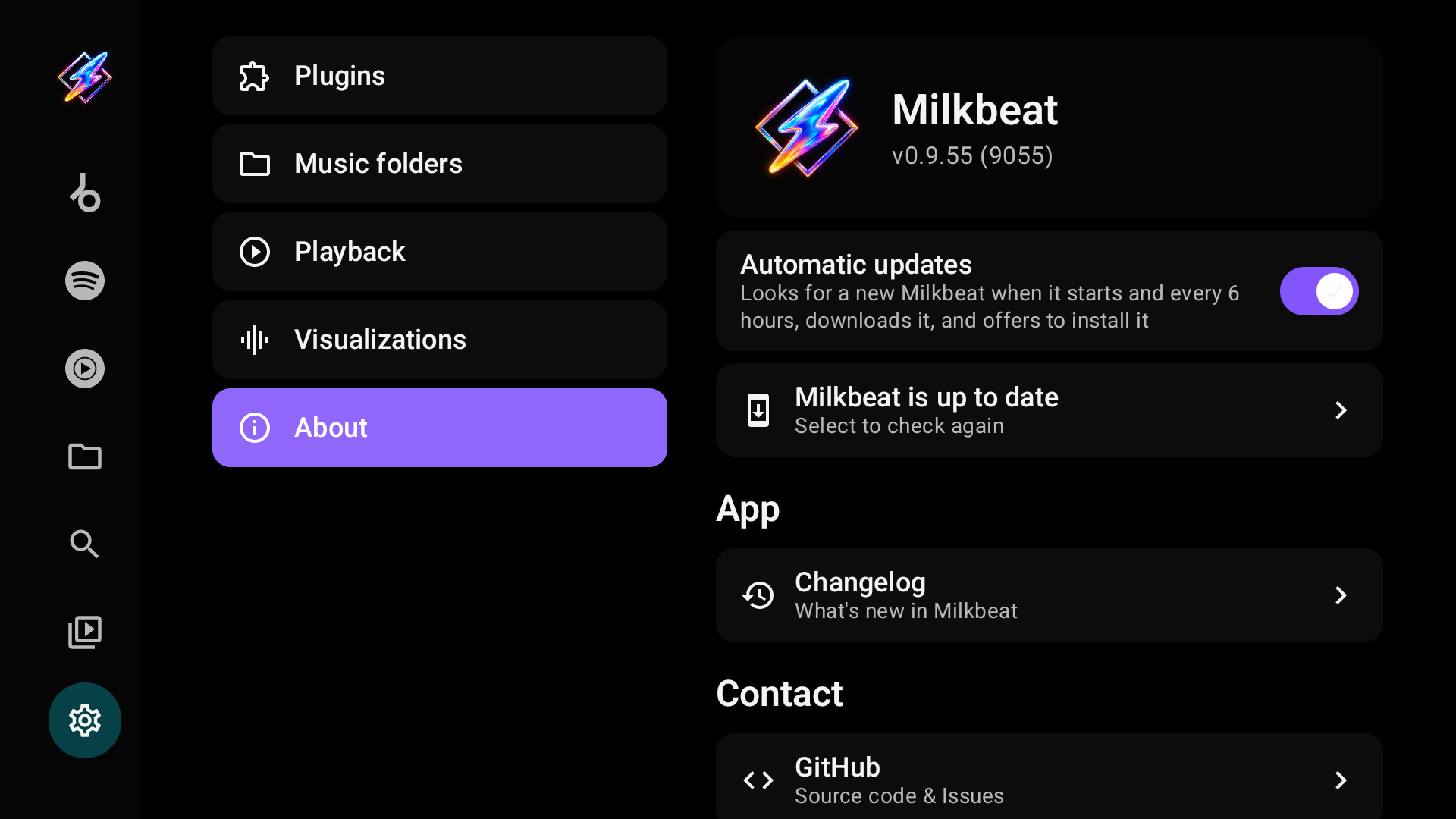
| Version | The installed Milkbeat version and build number |
| Automatic updates | GitHub build only, on by default: looks for a new Milkbeat at start and every 6 hours, downloads it and offers to install it |
| Update status | Milkbeat is up to date, or the available update; select to check again |
| Changelog | What's new in Milkbeat |
| Contact and credits | GitHub source and issues, the creator, Flow, projectM and the licence |
The FOSS build has no updater. App updates and plugin updates are separate. Installing a signed release over the existing app keeps its data; uninstalling first does not.