Providers and sign-in
Streaming catalogs come from optional, separately distributed plugins. Local and network folders are built in and need none. A plugin can offer any mix of three capabilities, shown under its name in Settings → Plugins:
| Capability | What it supplies |
|---|---|
| metadata | A music tab with Home, Search, artist, album and playlist pages, and the account's library |
| audio | Playable streams, including matches for tracks from another provider's catalog |
| video | Video search and playback, and music videos in now playing |
There is no metadata provider to choose: every installed, enabled catalog you can use gets its own music tab. You only choose the order of audio providers and which plugin supplies video.
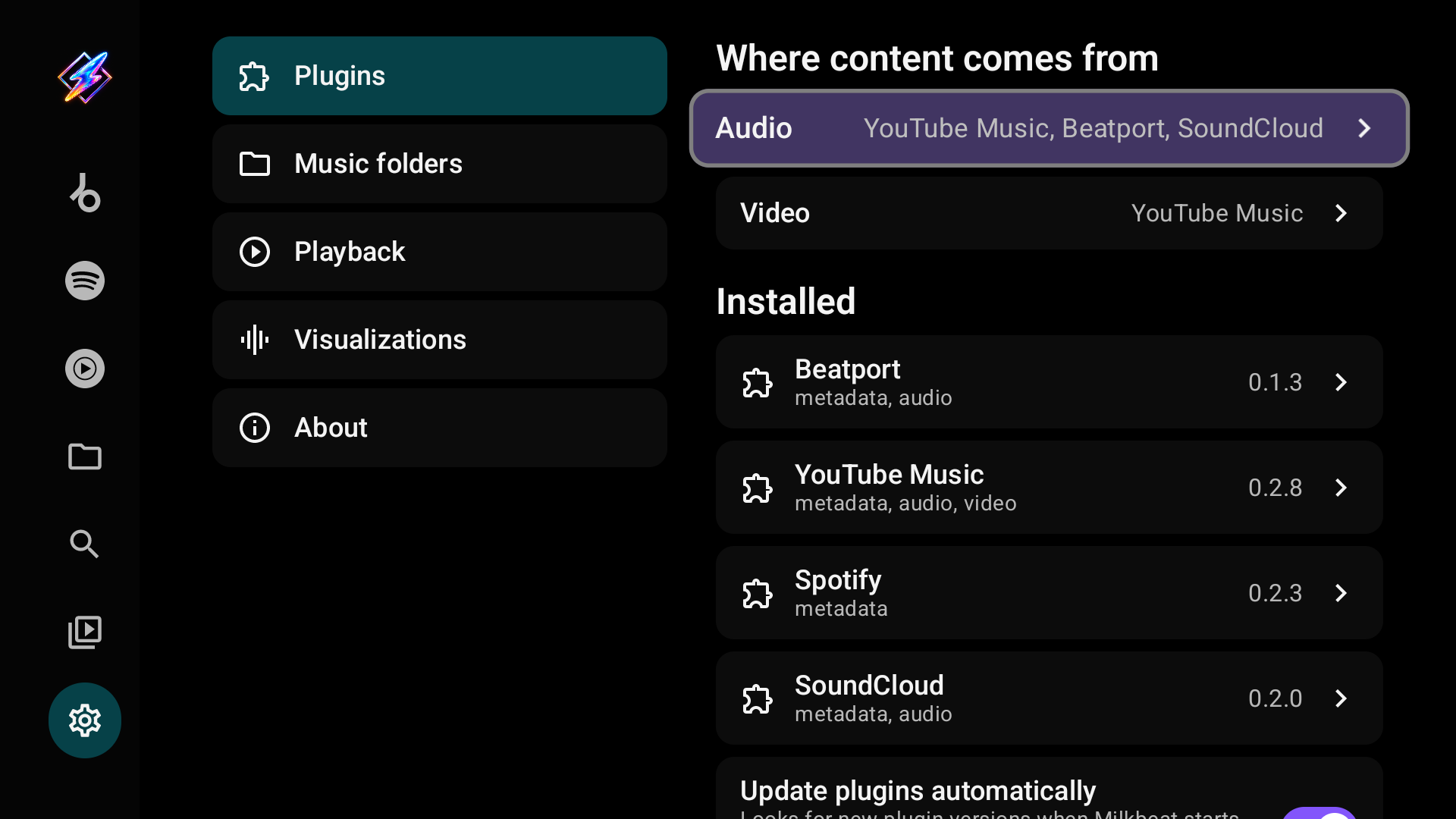
The available plugins
| Plugin | Code | Catalog | Audio | Video |
|---|---|---|---|---|
| YouTube | 563 | YouTube Music Home with mood chips, Search, artists, albums, playlists, library | YouTube streams, cross-provider matching and radio | Music videos |
| Spotify | 981 | Home, Search, artists, albums, playlists, library | None: use another audio provider | — |
| Beatport | 393 | Catalog, genres, charts, artists, labels, library | Full streams with a streaming subscription | — |
| SoundCloud | 089 | Discover, Stream, Search, Artists, albums, playlists, Liked Songs, history | Available full tracks, matching and stations | — |
| Deezer | 734 | Home, Flow, Search, artists, albums, playlists, library | Account streams and cross-provider matching | — |
Capabilities depend on the installed plugin version, the account and its subscription. The YouTube Music and YouTube Video plugins are retired; see Retired plugins.
YouTube
YouTube 0.1.6 (downloader code 563) is the one YouTube provider. It needs a Milkbeat build with plugin API 11; update the app before installing if your build is older. Its YouTube tab offers YouTube Music Home with mood chips, Search with YouTube Music's filters, artist, album and playlist pages, your library and radio. It plays YouTube audio and music videos, through YouTube's TV player first when you are signed in, and matches tracks from other catalogs. When the TV player refuses a stream, YouTube 0.1.4 and later play it through YouTube's other players and leave the TV player out for 30 minutes. YouTube 0.1.5 and later also find a set someone else re-uploaded, by searching its title alone when the uploader's name finds no videos.
The tab appears as soon as the plugin is installed and enabled; Home works signed out. While you are not signed in, a line above the mood chips says so and offers Sign in and, in the stable GitHub build, Download MicroG-RE-TV. Signing in uses the Google account in MicroG-RE-TV and works only in the stable app; see Sign in.
Retired plugins
The YouTube Music and YouTube Video plugins are retired: the YouTube plugin (code 563) replaces both. Their downloader codes (728, 416 and 494 for YouTube Music; 932, 304 and 744 for YouTube Video) no longer install anything in current Milkbeat builds and are never given to another plugin. Older Milkbeat releases may still resolve them from their bundled catalog, but no new versions are published.
An installed YouTube Music or YouTube Video plugin keeps working but gets no more updates. Its page in Settings → Plugins and its YouTube tab say it is retired and that YouTube (code 563) replaces it, with Add YouTube: this opens Settings → Plugins with code 563 for you to review and install. Once YouTube is installed, it holds the YouTube tab, also signed out, and the notice says the old plugin can be removed:
- Sign YouTube in with your Google account; it does not use the old plugins' sign-in.
- Check YouTube's place under Audio and choose it under Video.
- Open the retired plugin's details and select Remove.
Private YouTube copies of Spotify playlists that YouTube Music prepared stay in your YouTube library and show in Milkbeat's Library like your other playlists.
Deezer
Deezer 0.2.1 provides Home with Flow, mixes and channels, Search, artist, album and playlist pages, a read-only library and radio. Install it with code 734 on a Milkbeat build supporting plugin API 9. Sign in with Deezer through the phone web viewer on the same network as the TV. Its audio can play native Deezer tracks and accepted matches from other catalogs; stream availability and FLAC or MP3 quality depend on the account, region and recording. It supplies no video. Its encrypted streams cannot be downloaded for offline playback. On a Milkbeat build with plugin API 10, Deezer 0.2.1 fetches each track in one request, so playback no longer pauses and resumes during a song.
Install a plugin
- Open Settings → Plugins and scroll to Add a plugin.
- Enter a registered three-digit code, or a plugin download URL (a
.mbpluginfile or a supported Buzzheavier file page; an address without a scheme defaults to HTTPS). - Select Add a plugin.
- Review the plugin's author, description, capabilities and requested access, then select Install, Update for a newer version of an installed plugin, or Reinstall when the code or link fetches the version already installed. Cancel leaves everything as it was.
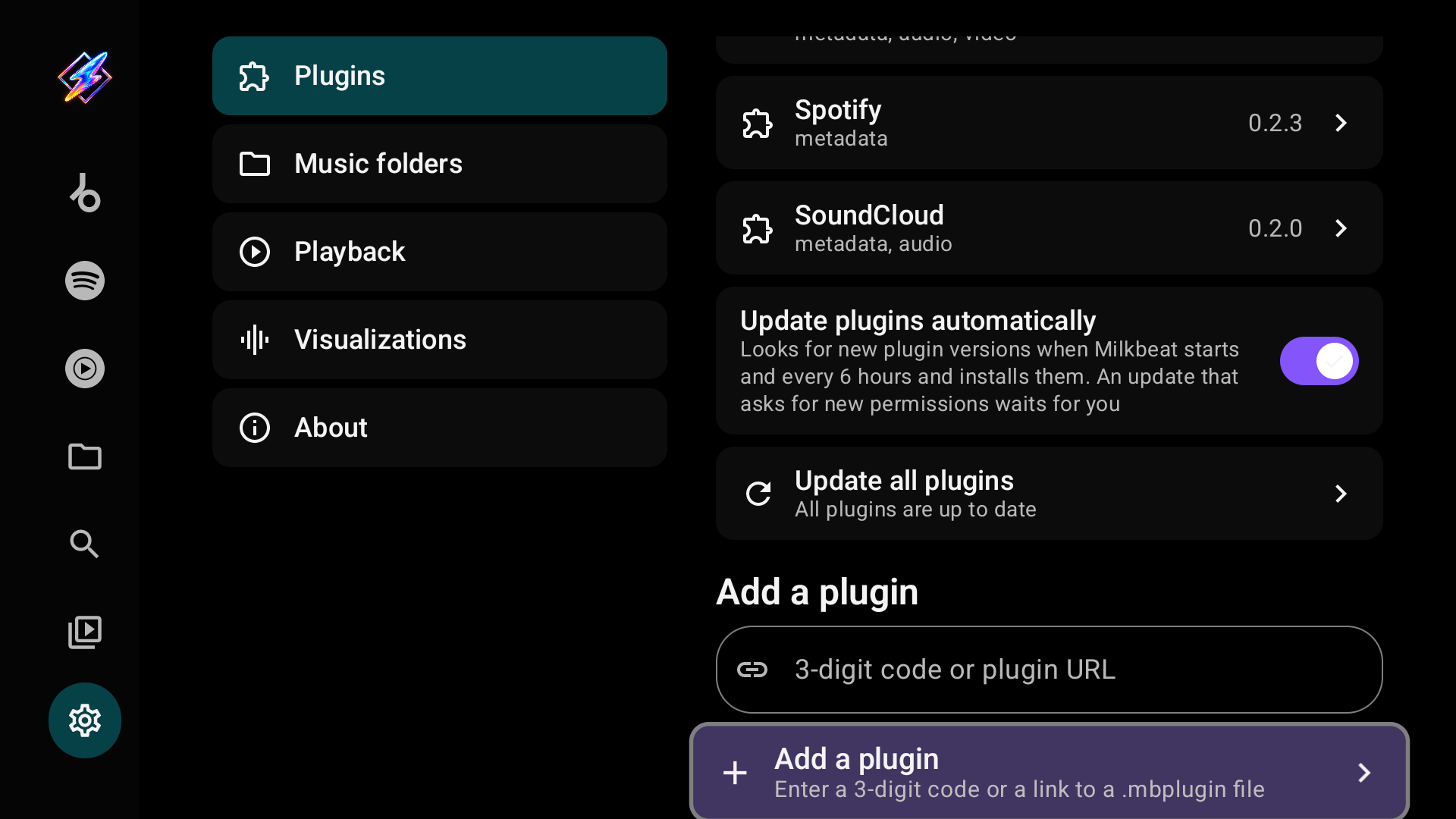
Download codes
| Code | Plugin |
|---|---|
| 393 | Beatport |
| 981 | Spotify |
| 089 | SoundCloud |
| 734 | Deezer |
| 563 | YouTube |
Stable builds prefer the publisher's live catalog and fall back to the bundled one offline, so newly published codes work without an app update. The separate Preview app pins its codes to its own test catalog. The original codes 102 (Beatport) and 772 (Spotify) still work; codes of retired plugins do not. An unknown code reports an error; try the plugin's full URL or update Milkbeat.
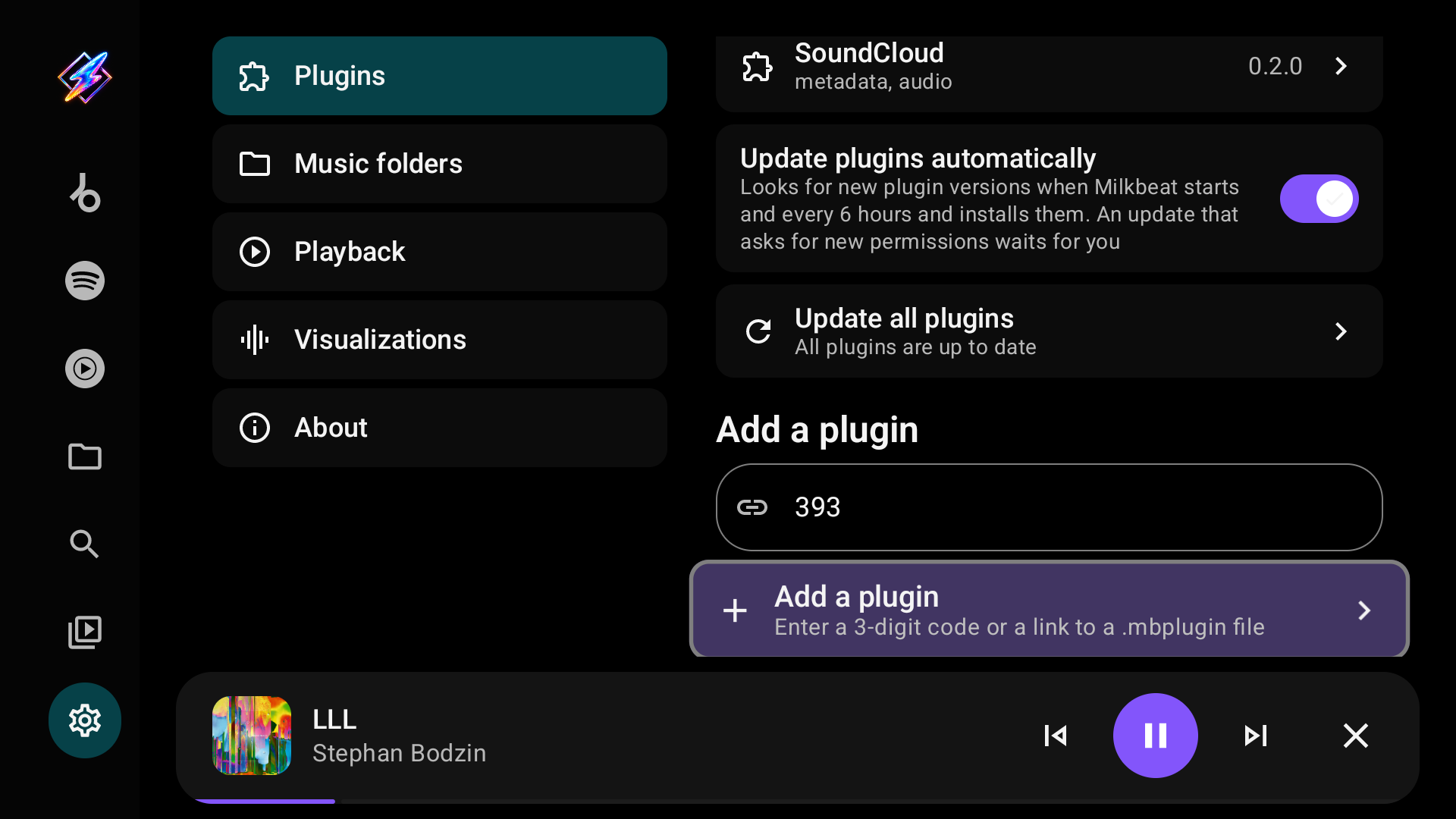
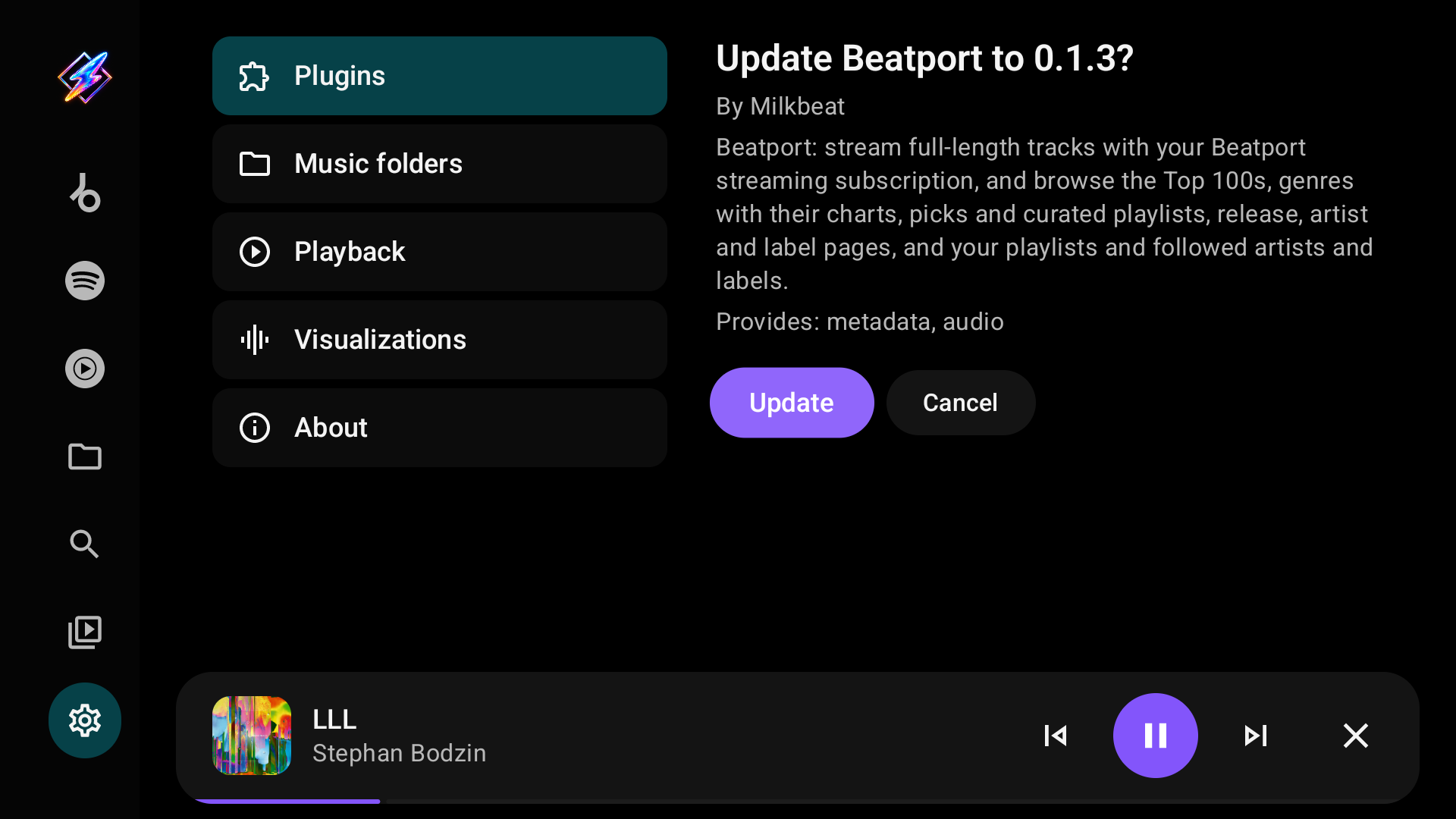
Milkbeat verifies a plugin's signature before offering installation. Buzzheavier sometimes asks to check the download in a browser; Milkbeat continues once the page lets it through.
A plugin built for a newer Milkbeat cannot be installed: Milkbeat reports needs a newer version of Milkbeat instead of an install review. When the publisher lists that requirement, Milkbeat says so for a code before downloading anything. The GitHub build adds Update Milkbeat, which opens Settings → About; update the app there, then add the plugin again. The FOSS build shows only the message, so update Milkbeat through its store.
Keep plugins up to date
| Control | What it does |
|---|---|
| Update plugins automatically | On by default. Looks for new plugin versions when Milkbeat starts and every 6 hours and installs them. An update that asks for new permissions waits for your review |
| Update all plugins | Checks now and installs every available update. It reads All plugins are up to date when there is nothing to install, and lists any update that needs your review as Update plugin |
An update must come from the same signing author and cannot be older than the installed version. When updates were installed or need review, Milkbeat shows a short notice; reviews wait in Settings → Plugins. Entering a plugin's code or link again still works too. Plugin updates are separate from app updates.
Updates that need a newer Milkbeat
A plugin version can require a newer Milkbeat than the one installed. Milkbeat does not download that version or retry it as a failed update. Instead, Update all plugins reads 1 update needs a newer version of Milkbeat and lists the plugin as Update plugin with Update Milkbeat first. A background check shows a notice once each time Milkbeat starts. In the GitHub build, selecting the row opens Settings → About to update the app. After the app is updated, the next plugin check installs that version as usual. The installed plugin version keeps working in the meantime.
Plugin details
Select an installed plugin to see its version, description and account, and to sign in or out, report plays, index playlists or remove it. Removing a plugin never removes local music sources. Account names are blurred in these captures.
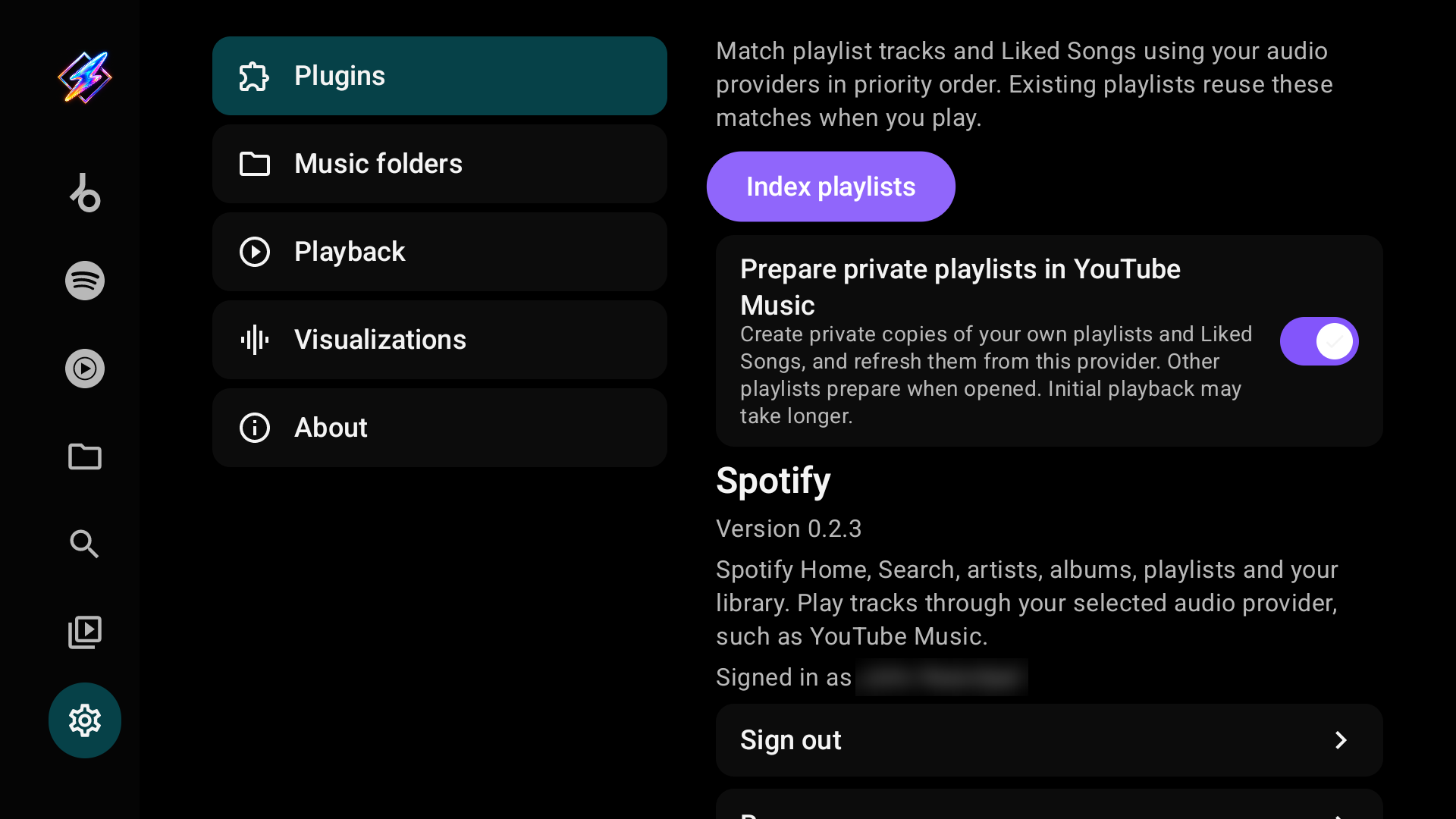
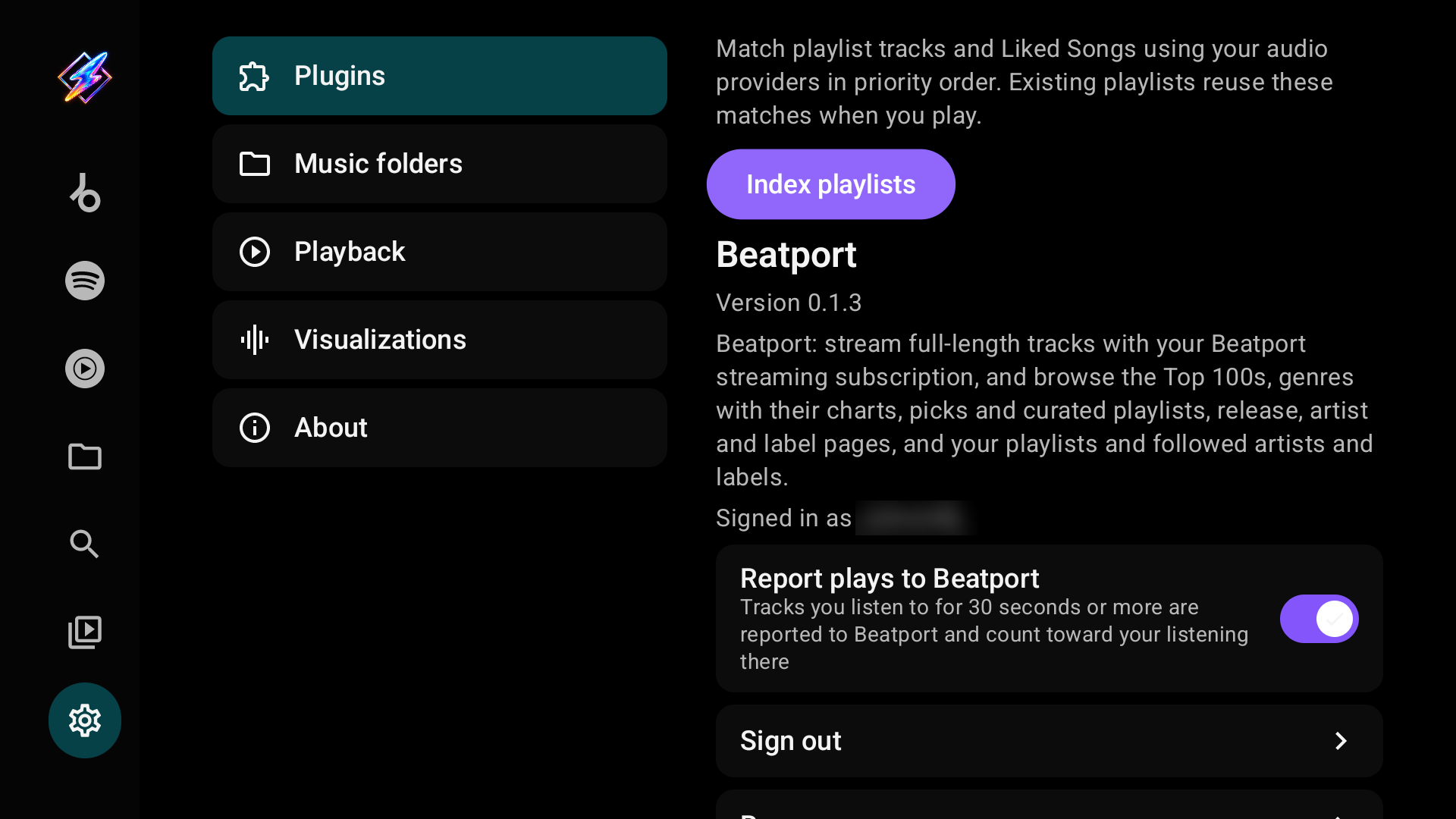
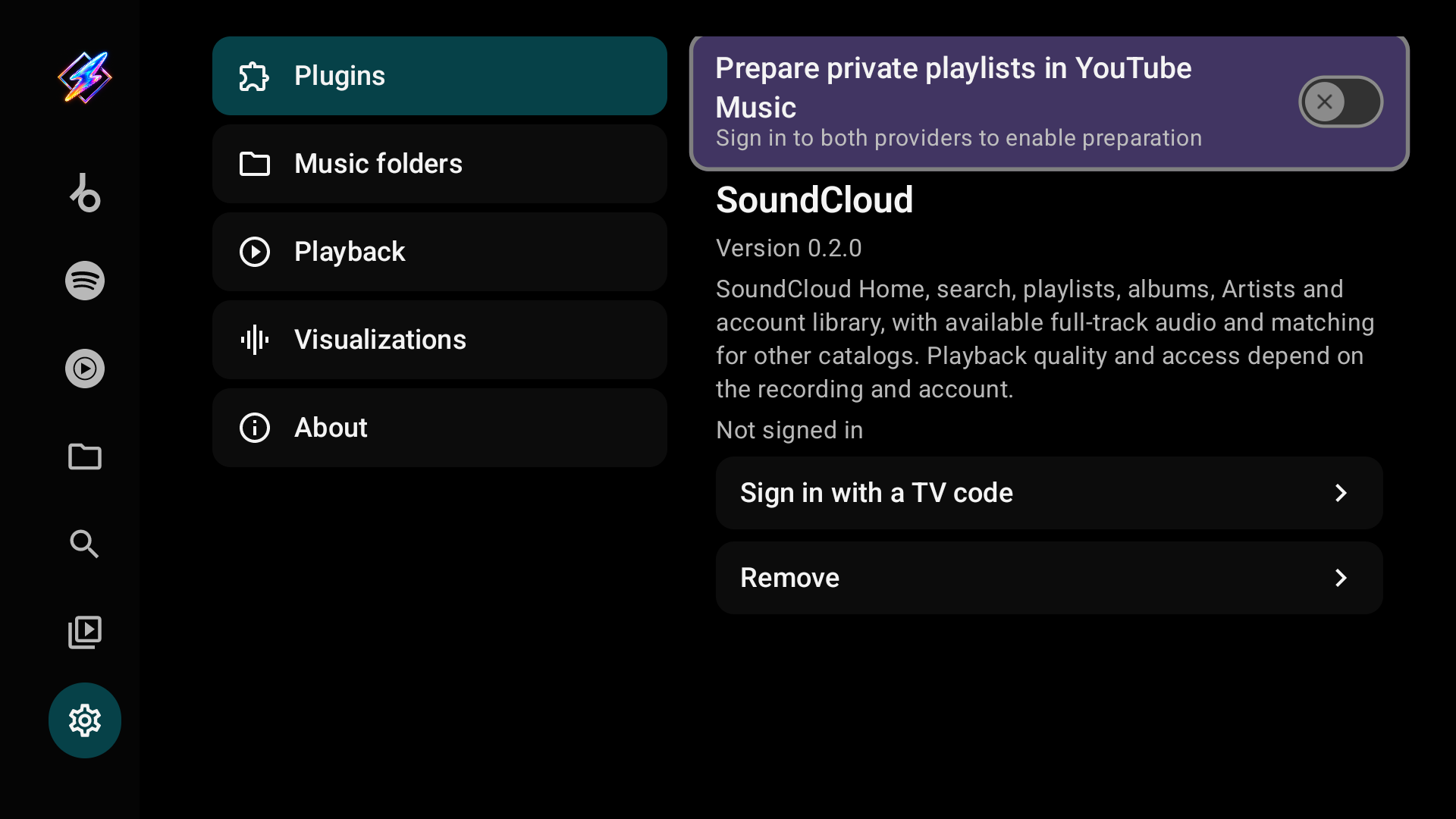
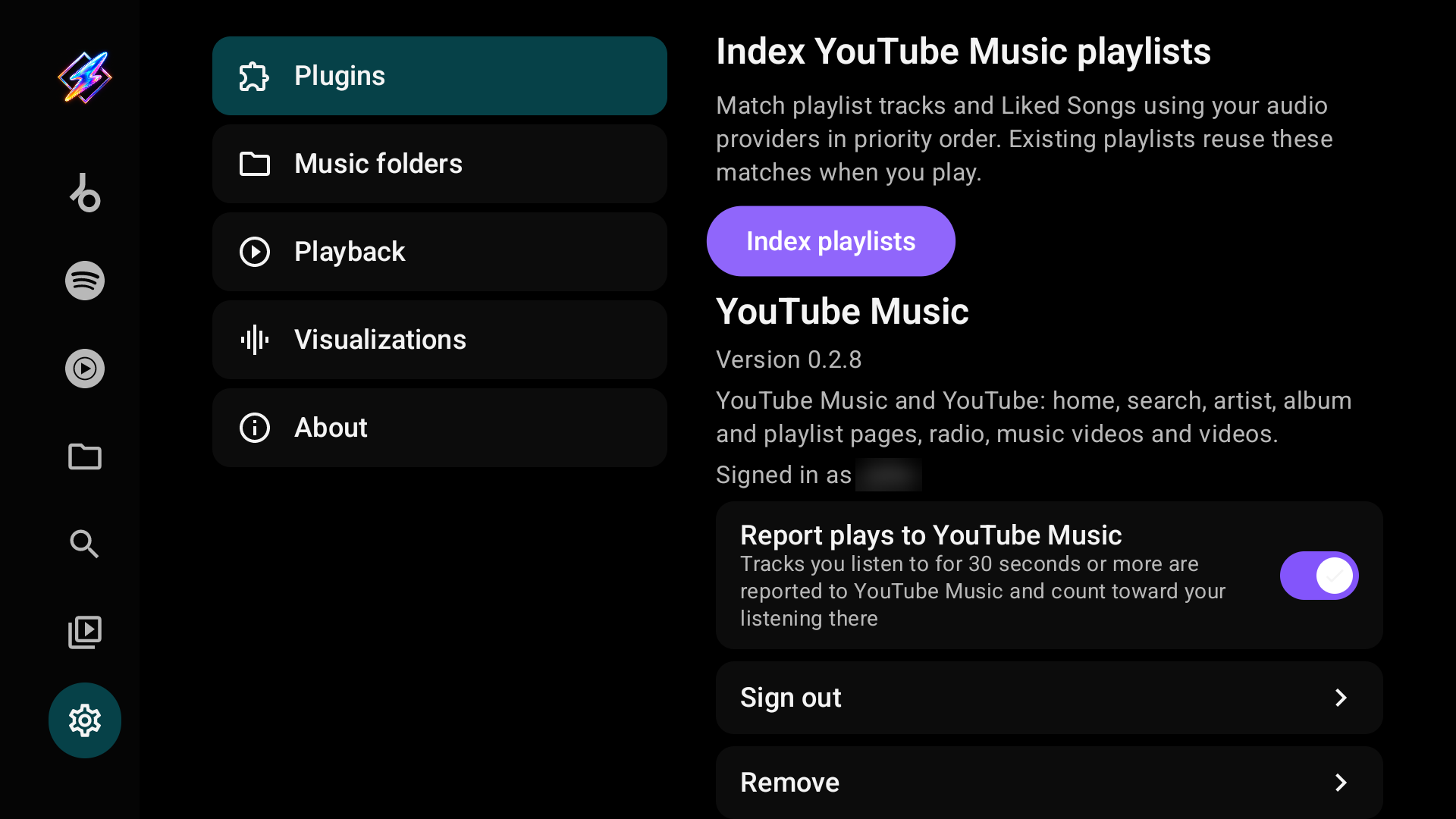
The retired YouTube Music plugin, captured before it was retired; its page now also says that YouTube (code 563) replaces it.
| Item | What it does |
|---|---|
| Index playlists | Matches the account's playlist tracks and Liked Songs against your audio providers in priority order, so playback can reuse the matches |
| Plugin is retired / Add YouTube | Retired YouTube Music and YouTube Video plugins only: see Retired plugins |
| Download MicroG-RE-TV | Stable GitHub build, plugins that sign in with a Google account, while not signed in |
| Report plays to provider | Tracks you listen to for 30 seconds or more, or for half of a track shorter than a minute, are reported to that provider. Compatible API 8 music providers receive updates during playback and at pause/seek/final boundaries; older providers report when the listen ends. Unknown-length tracks require 30 seconds. Skipped sections do not count as listening |
| Signed in as / Not signed in | The account state. Signed out: sign in again means the provider confirmed the session expired |
| Sign in / Sign out | Starts the provider's sign-in method or forgets the session |
| Remove | Uninstalls the plugin and its tab |
Completed indexing matches are kept when you cancel. Index again after changing the account or the audio-provider order.
Sign-in and account requirements
- YouTube: sign-in is optional; Home works signed out. Signing in with the Google account in MicroG-RE-TV gives you your own Home, library and history. It works only in the stable app, not in Milkbeat Preview or debug builds. YouTube 0.1.6 needs a Milkbeat build with plugin API 11.
- Deezer: sign in through the phone web viewer for your catalog, Flow and read-only library. Audio availability and quality depend on the account and recording. Deezer 0.2.1 needs a Milkbeat build with plugin API 9.
- Spotify: a catalog with no audio source. Its value is your personalized feed, playlists, Liked Songs and library after signing in. Keep at least one audio provider enabled.
- Beatport: sign in for the catalog and your library. Beatport's own full-length audio needs an active streaming subscription; otherwise SoundCloud or YouTube can match the recording. A free account does not guarantee a match.
- SoundCloud: sign in for personalized Home, playlists, Liked Songs, history and Artists. Public search and catalog pages can work anonymously. Full-track availability depends on the recording and your listening subscription; Artist Pro does not grant Go+ listening rights. Preview-only or restricted recordings can appear but cannot supply full-track audio, so keep another audio provider as a fallback. SoundCloud plugin 0.2.0 needs a Milkbeat build with plugin API 5. TV-paired accounts currently play clear HLS streams only; protected-only recordings cannot play with this session, and plays from a TV-paired account are not reported to SoundCloud. Existing web sessions keep their Widevine playback path where the account and device allow it.
Sign in
Open the installed plugin's details and choose its sign-in method.
TV code pairing (SoundCloud): select Sign in with a TV code, scan the QR code or open the displayed address on a phone or computer, sign in and approve the short code. The phone does not need to be on the TV's network. Keep the TV screen open while it waits: leaving it, pressing Back or sending Milkbeat to the background cancels the attempt, and an expired or declined code can be requested again. The plugin accepts the account only after its account and Home requests succeed.
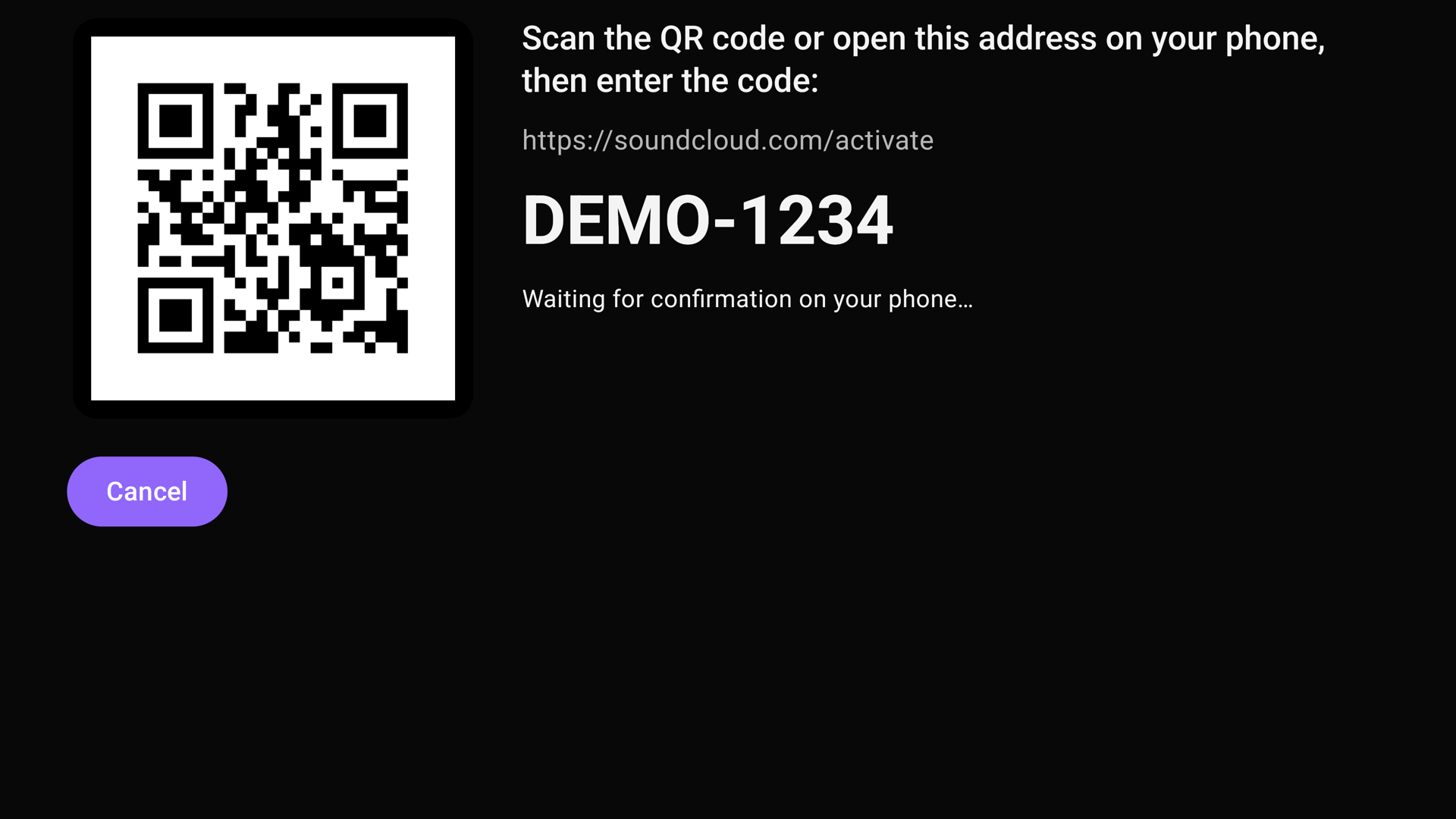
Web sign-in (Spotify, Beatport and Deezer): scan the TV's QR code with a phone on the same network. The phone viewer streams the provider's real sign-in page from the TV; use touch and typing on the phone to complete sign-in and any verification. Browsing and playback stay in Milkbeat's TV interface.
Google account through MicroG-RE-TV (plugins that offer it, such as YouTube, code 563): select Sign in with your Google account. Everything happens on the TV with the remote; no phone is needed.
- If MicroG-RE-TV is not installed, the stable GitHub build offers Install MicroG-RE-TV. It downloads the latest release from MicroG-RE-TV and opens Android's install prompt. The first time, Android asks you to allow Milkbeat to install apps; allow it and press Back. The stable foss build asks you to install it yourself. Milkbeat Preview and debug builds cannot use this sign-in at all, so installing MicroG-RE-TV for them does not help. A MicroG-RE-TV older than 7.2.1.5 cannot sign Milkbeat in: the stable GitHub build offers Update MicroG-RE-TV, which installs the latest release over it and keeps your account, and the foss build asks you to update it. Other MicroG builds under the same package are used as they are.
- Pick your Google account from MicroG-RE-TV in the TV's account picker. On affected Google TVs, Milkbeat opens Android's standard picker to show MicroG accounts; other TVs keep their configured picker. Regular Google accounts are excluded. If there is none yet, add it in MicroG-RE-TV when Android offers to.
- MicroG-RE-TV 7.2.1.5 and later grant Milkbeat the access the plugin needs, such as "use your account as YouTube Music", without asking. If your MicroG build asks instead, select Allow; declining ends the attempt, and Retry asks again.
Download MicroG-RE-TV (stable GitHub build): while YouTube is not signed in, its tab shows a line above the mood chips with Sign in and Download MicroG-RE-TV, and Settings → Plugins → YouTube shows a Download MicroG-RE-TV row under the sign-in method. It downloads the latest MicroG-RE-TV release and installs it, also over an installed copy, which keeps its Google account; then sign-in continues with the account picker as above. If Milkbeat may not install apps yet, Android's setting for that opens first: allow it and press Back. Sign in starts the same sign-in without downloading anything. The foss build does not show the download button.
On TCL TVs, which stop apps from starting other apps in the background, Milkbeat starts MicroG-RE-TV itself while it signs you in. If sign-in or playback from the plugin still fails there, allow MicroG-RE-TV to start on its own with adb: adb shell appops set app.revanced.android.gms AUTO_START allow.
Milkbeat keeps the account name, never a password or token. MicroG-RE-TV keeps your grants and issues short-lived tokens; to withdraw access, remove it in MicroG-RE-TV. This sign-in works only in the stable app (nl.neerdael.milkbeat), not in Milkbeat Preview or debug builds.
When a provider reports an expired sign-in, Milkbeat asks the plugin again in the background, retrying temporary connection failures, and restores the account without any action when it still works. An account the provider confirms expired needs sign-in again; local folders keep working.
Set audio priority
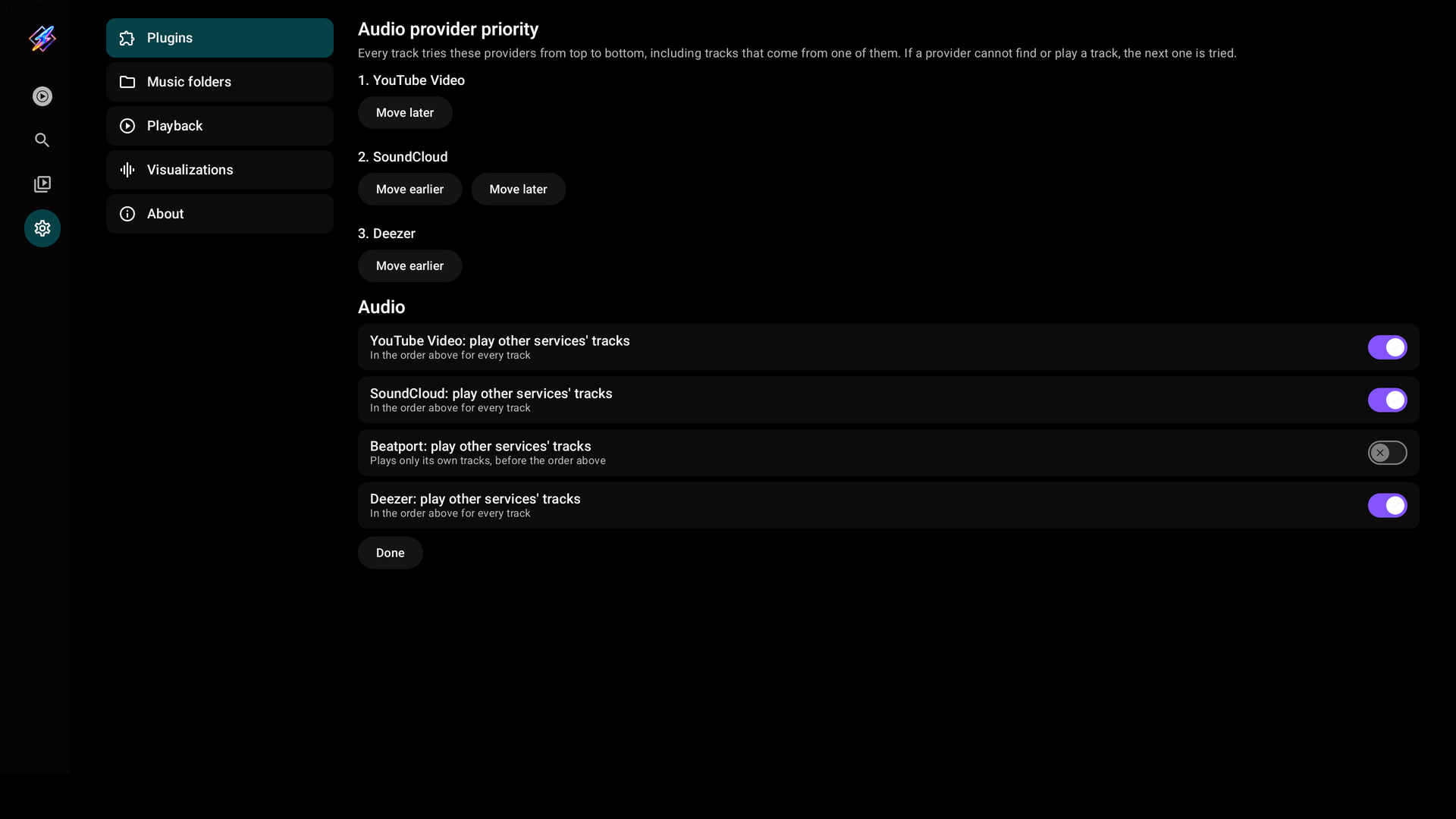
Under Audio, use Move earlier and Move later to order the providers, then select Done. Every track tries the providers in this order, including a track that comes from one of them: with YouTube above SoundCloud, a SoundCloud track is first looked up and played on YouTube, and its own SoundCloud stream is the fallback. When a provider's turn comes for one of its own tracks, it plays that track directly without a search.
Each provider's play other services' tracks switch decides whether it is in the order:
- On: the provider is in the order above and is used for every track in its turn.
- Off: the provider plays only its own tracks. It is tried first for those, and if it cannot play one, such as Beatport without a streaming subscription, the track continues down the order. It never searches for other services' tracks, even when one of them carries its ID. The Audio row in Settings → Plugins lists it after the order as provider (own tracks only).
Beatport starts with the switch off, and updating Milkbeat switches it off once for an existing setup; switch it on to add it to the order again. Updating a plugin keeps your choice.
Spotify has no audio of its own, so Milkbeat searches up to four providers at once. A faster match from a lower provider is used only once every higher provider has failed; the remaining searches are cancelled as soon as the result is decided.
YouTube matching searches recorded videos, including static Art Tracks and archived live sets, whichever now-playing view you use. It checks recording identity, so an unrelated performance, cover, different remix or short excerpt is rejected, and full versions are preferred over mixed excerpts. A live set of 20 minutes or more also matches a YouTube upload up to 15% longer or shorter, such as a promoter's upload with an intro, when the performer, event and year are the same. For dated Tomorrowland sets, TML and Tomorrowland mean the same festival: the performer, recording day and full-set duration must agree, even when one title names the city and the other names the stage. The recording day can be confirmed by the video description; the upload date is not used. YouTube 0.1.6 and later supply this description lookup; use Milkbeat 1.0.4 or later for the dated-set matching rule. The picture loads only when you choose the video view.
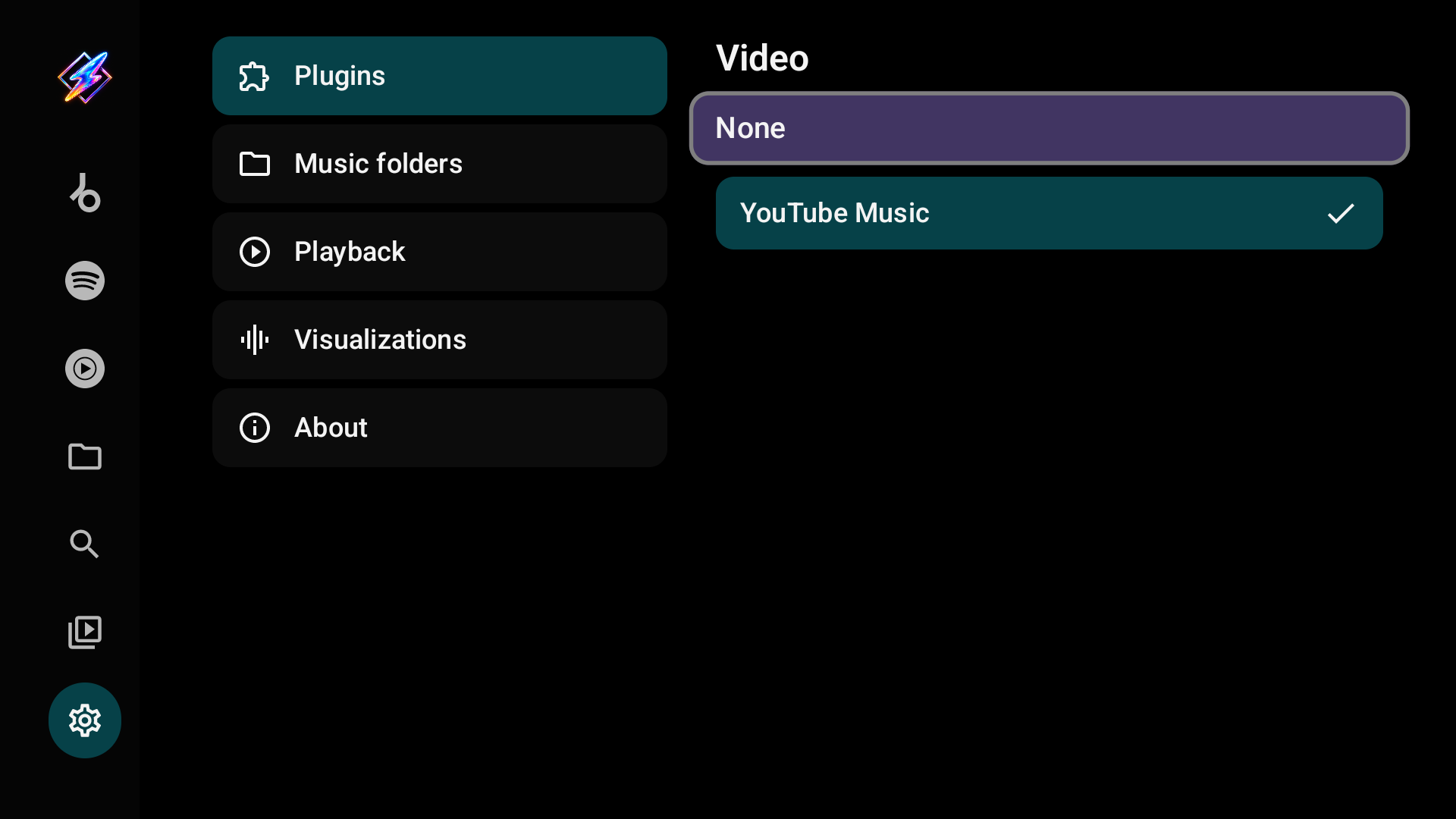
Under Video, choose which plugin supplies videos, or None.
Spotify with YouTube audio
Sign in to Spotify and keep YouTube enabled under Audio. Spotify supplies the catalog and playlists; YouTube supplies a matched recording, which can differ from the catalog entry. The queue then continues with the YouTube radio of the queue's first track, matched on YouTube.