Install and get started
Milkbeat runs on Android TV, Google TV and Fire TV with Android 8.0 or later. It is built for the TV remote and has no touch or phone layout.
Install on the TV
- Install Downloader by AFTVnews from the TV's app store and allow it to install apps.
- Open it and enter code
7170062. - Install the APK it downloads, then start Milkbeat from the launcher.
The code always points to the newest release.
- Open the latest release.
- Download
milkbeat-universal.apkif you are unsure of your device's architecture. Smallermilkbeat-arm64-v8a.apkandmilkbeat-armeabi-v7a.apkfiles are also attached. - Open the APK with the TV's installer, allowing installs from that source if Android asks.
Installing a newer release over the existing app keeps its data, plugins and sign-ins. Uninstalling first removes them. The GitHub build updates itself if you leave Automatic updates on under Settings → About.
Coming from MusicViz?
Milkbeat is the same app under a new name and application ID (nl.neerdael.milkbeat), so it installs next to MusicViz rather than over it. Sign in again in Milkbeat, then uninstall MusicViz. Downloader code 4718521 still works and now installs Milkbeat.
First playback
Pick whichever fits your music; you can add the others later.
-
Your own files
Settings → Music folders → Choose local folder, or add an SMB, WebDAV, SFTP or NFS server. No plugin or account is needed.
-
A streaming catalog
Settings → Plugins → enter a three-digit plugin code, install it and sign in if the provider needs one.
Each provider or folder you can use gets its own tab in the sidebar. Until there is one, a single Music tab offers to add a plugin or a music folder.
Find your way around
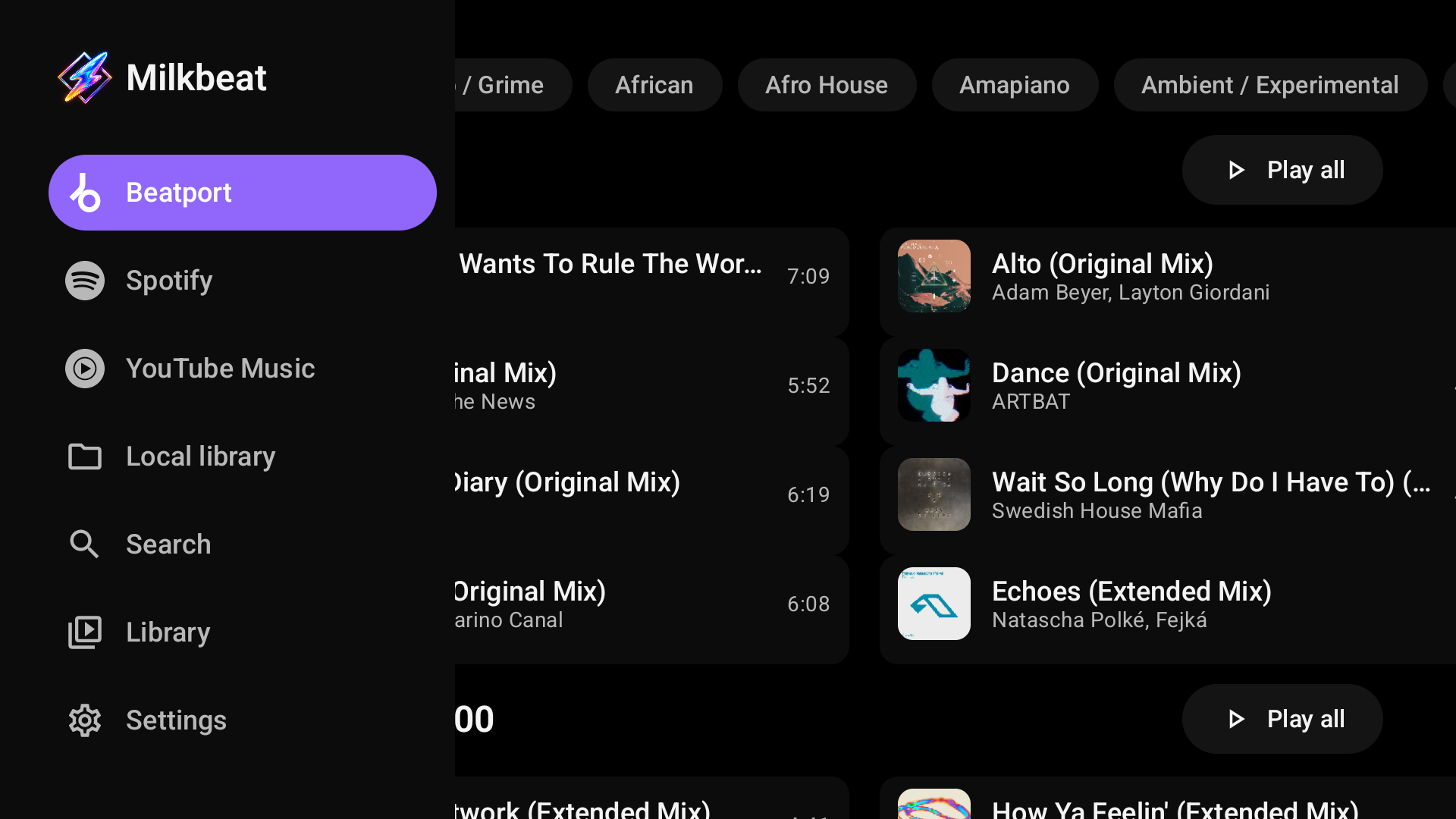
Press Left from the content to open the sidebar. The upper part holds one tab per music service plus Local library; below them are Search, Library and Settings. Milkbeat opens on the music tab you used last. The browsing guide explains each part.
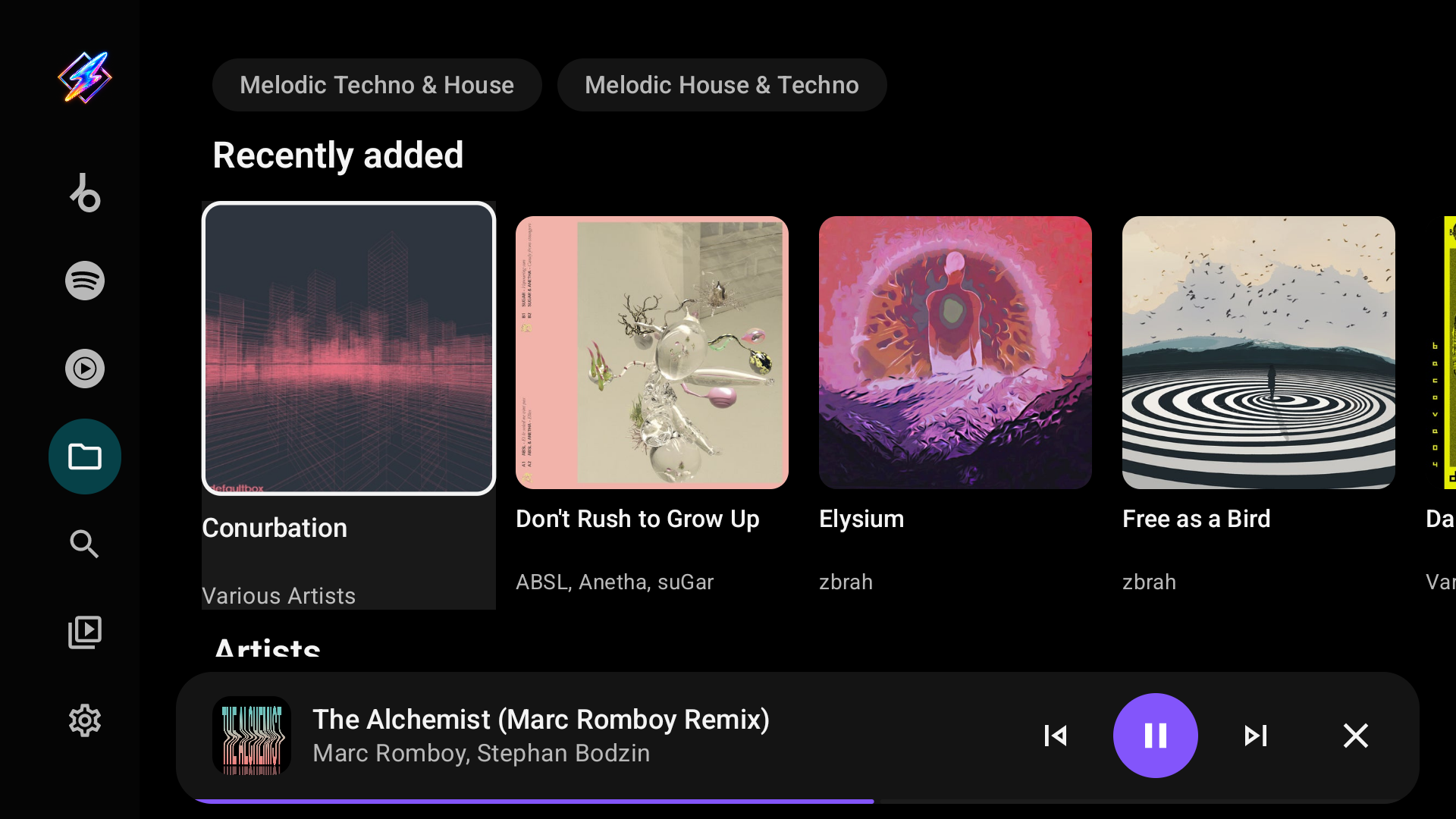
While music plays, a bar at the bottom shows the track with previous, play/pause, next and close. Select the bar to open the full player.
Remote controls
| Key | In menus and pages | In the full player |
|---|---|---|
| Up Down Left Right | Move focus | With controls hidden: Left and Right step through visualizer presets |
| Enter (OK / centre) | Open or activate the focused item | Show the playback controls |
| Back | Close a panel, or return to the previous page | Hide the controls, then leave the player |
| Hold Up or Down in the queue | Scroll repeatedly, accelerating through a long queue | |
| Media keys | Play/pause, previous and next control the playing queue |
Settings has its categories on the left and their controls on the right. Back closes a page opened inside a category, such as audio priority or a plugin's details, before it leaves Settings; pickers open as a side panel that Back closes.