Playback, queue and radio
The full player
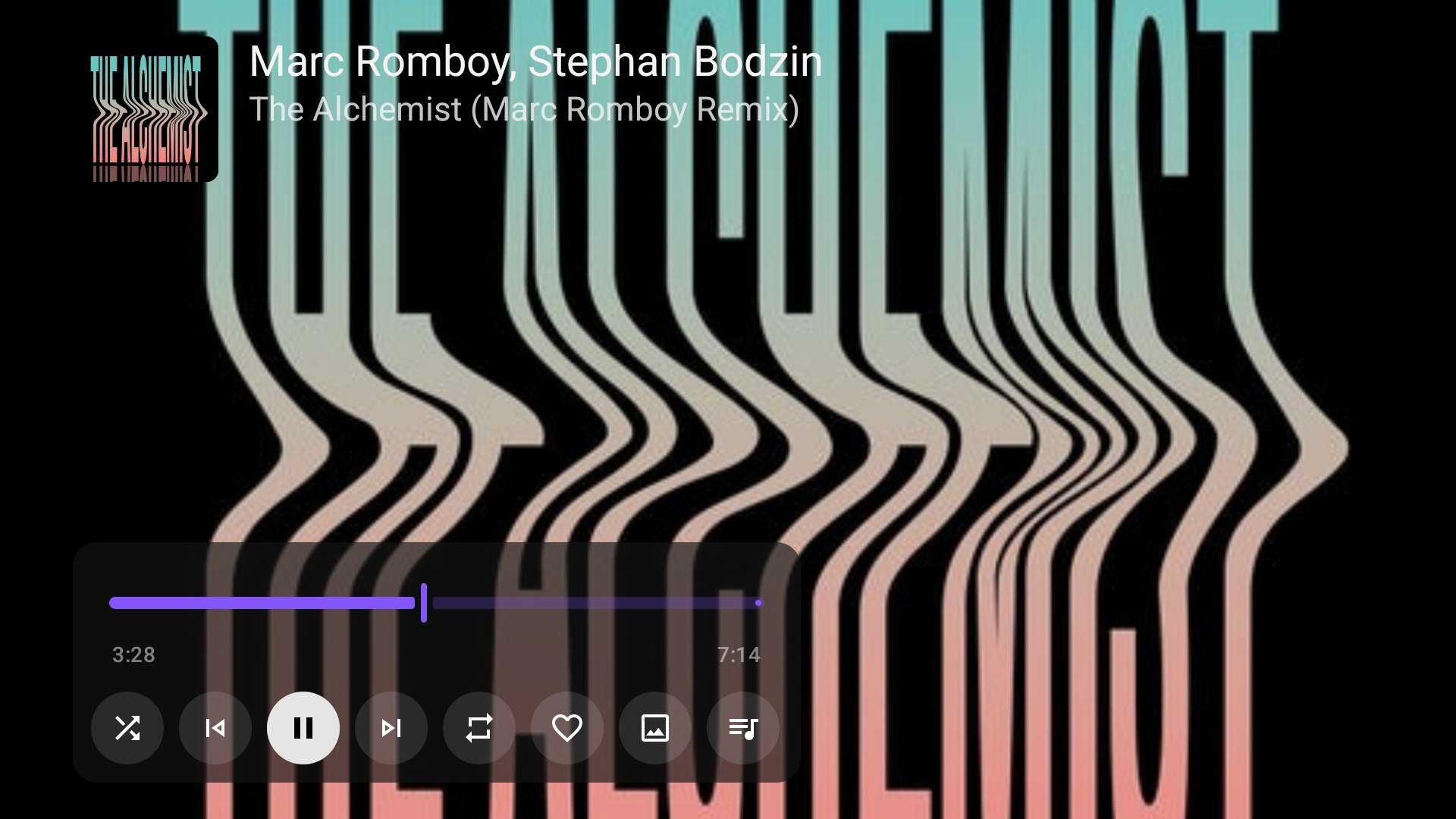
Selecting a track, Play or Shuffle opens the full player. The track's cover, artists and title sit in the upper left over the visualizer, the music video or the artwork. Press OK to show the controls.
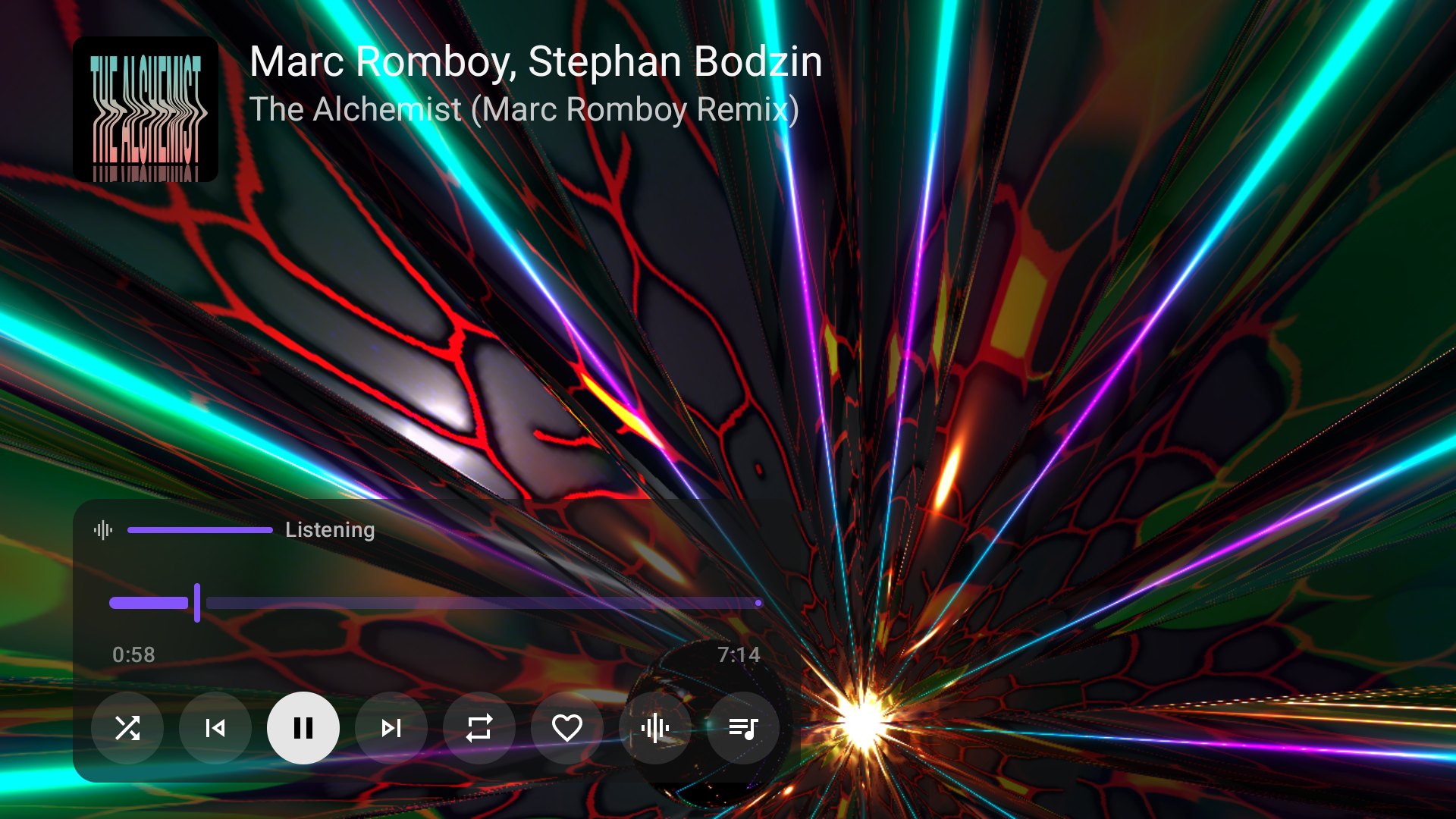
| Control | What it does |
|---|---|
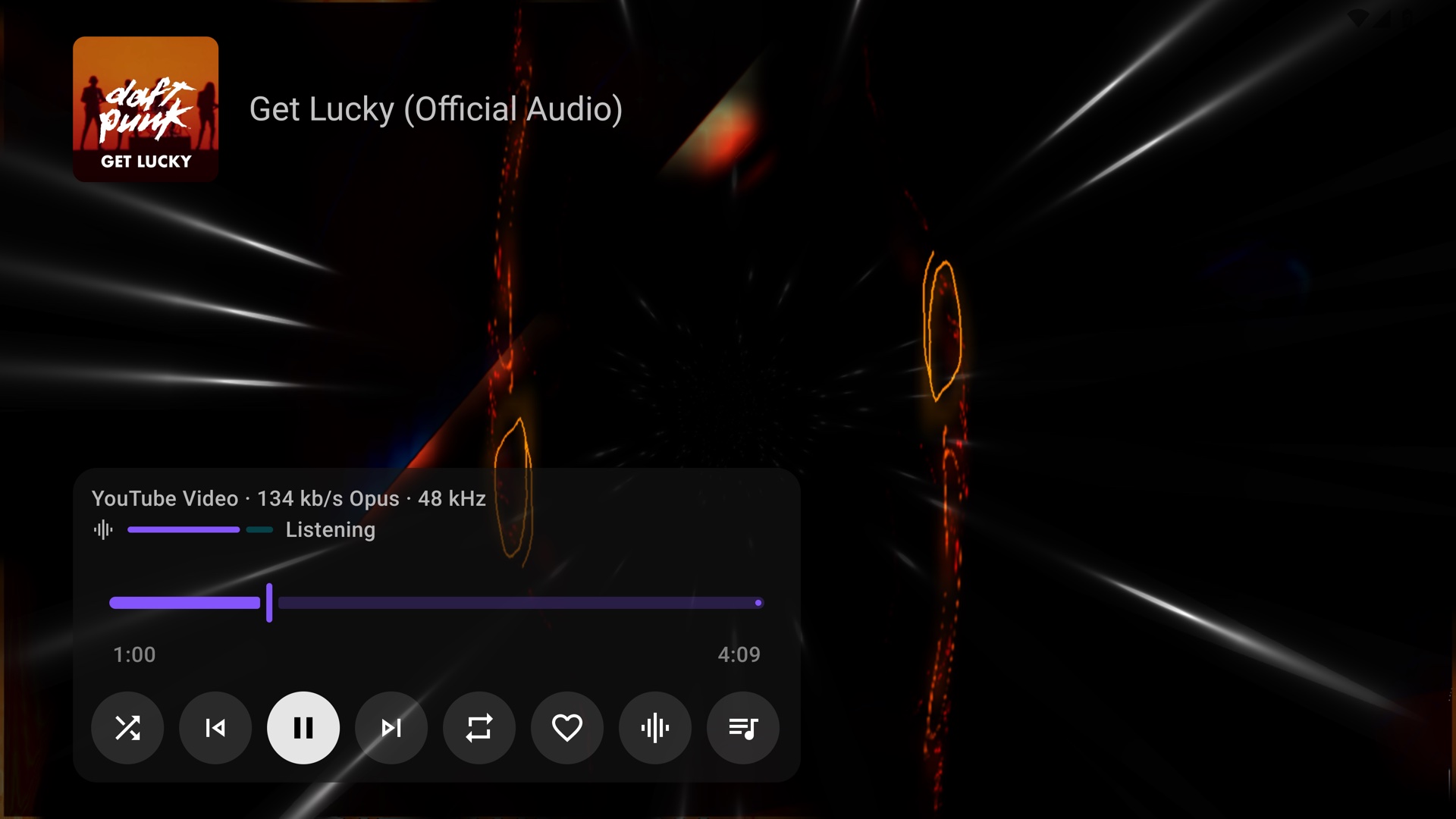
| Audio quality (optional) | The source, codec, bitrate and sample rate of the playing music; see Audio quality |
| Audio level (visualizer only) | Listening, Very quiet or No sound: what the visualizer currently hears |
| Seek bar | Elapsed and total time of the track |
| Shuffle, Previous, Play/pause, Next, Repeat | The usual queue controls |
| Heart | Like the track; music likes appear under Liked songs in Library |
| View button | Steps through the visualizer, the music video and the artwork |
| Mood mix (visualizer only) | Opens the mood mix beside the player; shown only while the visualizer is the view |
| Queue | Opens the queue and radio presets beside the player |
The controls hide on their own after a few seconds. With them hidden, Left and Right step through visualizer presets. Back hides the controls, then leaves the player; the mini player keeps showing the track elsewhere in the app. Music keeps playing in the background unless you turn off Background Play in Settings → Playback.
Audio quality
Turn on Show audio quality in Settings → Playback to see what is playing at the top of the controls, in every view.
| Example | Meaning |
|---|---|
YouTube Video · 134 kb/s Opus · 48 kHz |
Opus from the plugin named YouTube Video, at the bitrate the plugin reported. That plugin is retired; the YouTube plugin's line starts with YouTube |
On this device · 1411 kb/s FLAC · 44.1 kHz / 16-bit |
A CD-quality FLAC file on the TV's storage |
On this device · 4608 kb/s FLAC · 96 kHz / 24-bit |
A hi-res FLAC file |
On this device · 320 kb/s MP3 · 44.1 kHz |
A 320 kb/s MP3 |
On this device · Opus · 48 kHz |
An Ogg Opus file: the file states no bitrate |
The first part names the source: the audio plugin that resolved the track (a Deezer FLAC stream reads Deezer · 1411 kb/s FLAC · 44.1 kHz / 16-bit), On this device for local files, the protocol (SMB, WebDAV, SFTP or NFS) for a network folder, or Downloaded when an offline copy plays. The rest comes from the audio track the player decodes rather than a provider's label. A lossless format (FLAC, ALAC, PCM) shows its decoded rate, which is how providers describe CD and hi-res quality; other formats show the bitrate stored in the stream, or else the one the plugin reported. Parts that neither reveals are left out. The line appears once the track's audio is loaded and changes with the track.
Visualizer, music video or artwork
The view button steps through three views while the audio carries on. Video hides the corner cover, artist and title; the visualizer and artwork views keep them visible. Milkbeat remembers the view you leave it on for later tracks and later sessions.
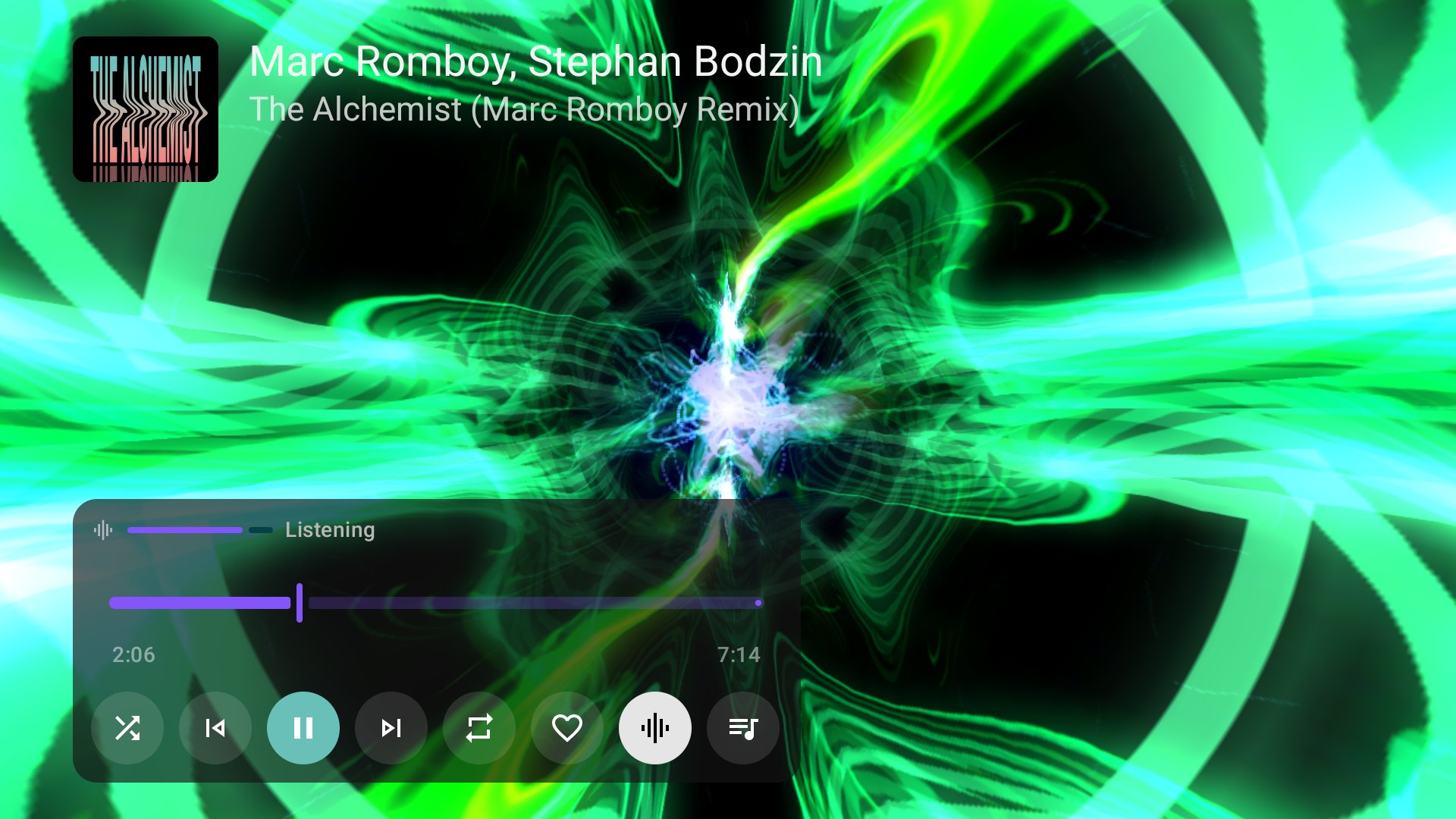
The default: MilkDrop presets that react to the track you hear.
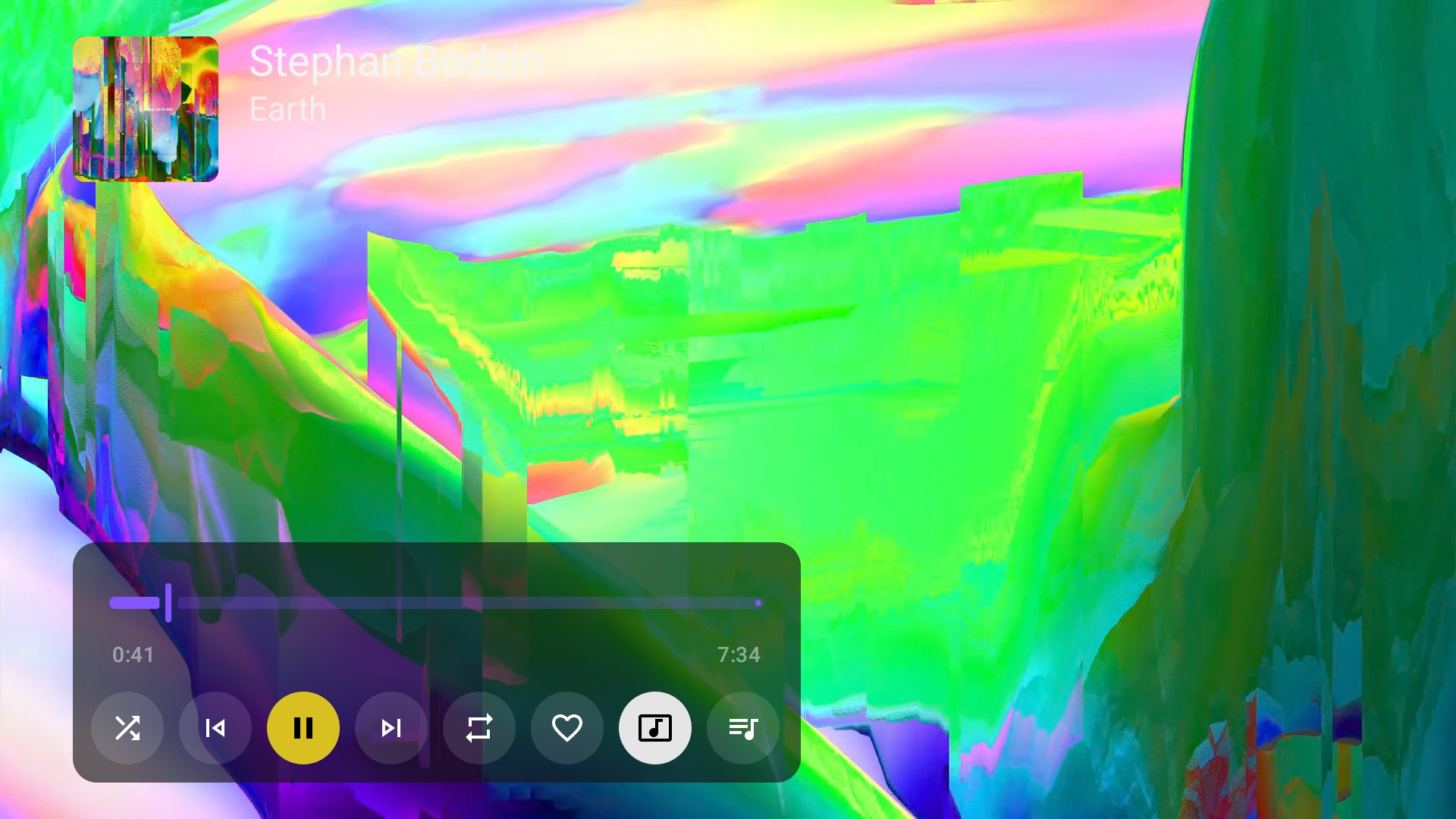
The matched YouTube video, capped at the TV's physical display resolution up to 2160p, in a codec the TV decodes in hardware. A 1080p or 720p display retains that lower limit; the recording, provider and bandwidth can offer lower quality. Art Tracks with static album artwork count as videos.
The accepted audio provider's best available playback thumbnail fills the screen, even when Spotify or SoundCloud supplies the catalog entry. The picture fills the screen without being stretched, so a square cover loses some of its top and bottom. YouTube 0.1.3 and later supply the video's largest still, or the square cover for audio-only Art Tracks; SoundCloud 0.2.1 and later supply the cover at SoundCloud's largest size. Otherwise Milkbeat requests SoundCloud covers at 1080 × 1080 for now playing and at smaller sizes in lists. Missing or failed images use the original catalog cover. The title, artist, queue identity and playing recording stay the same. Local files and providers without playback artwork retain their cover. Loading the thumbnail does not start video playback.
YouTube matching finds recorded videos when needed and reuses validated saved matches, whichever view you use, but the picture only loads when you select the video view. A confirmed YouTube match can offer video even for Spotify, SoundCloud or Beatport tracks. A track without a usable video skips from the visualizer straight to the artwork; with the video view chosen, such a track shows the visualizer instead. With visualizations turned off, the button moves between video and artwork. A video that cannot play falls back to audio with the visuals.
Compatible API 7 providers prepare audio and optional video rendition metadata together. Selecting video changes the existing presentation’s track selection without replacing the media item or seeking the audio. For prepared network music videos, the initial switch buffers 30 seconds of video ahead of the advancing audio position, or the remaining duration near the end of a track. The visualizer keeps running with a loading indicator over it until that buffer is ready and the video’s first frame has rendered. The picture then replaces the visuals at the current audio position. If video preparation fails, the visuals remain; switching back to the visualizer cancels preparation without restarting the visuals. If artwork was showing, it stays visible during preparation instead. After that initial join, normal ongoing buffering remains unchanged. The indicator stops animating while paused or hidden. Metadata preparation does not enable video playback. A completed audio download keeps its offline cache path without requiring a downloaded picture or a provider lookup. Older providers keep audio playback; a separate progressive picture without the metadata needed for a prepared presentation stays unavailable. An unavailable optional picture is retried as audio before moving to another provider. Lyrics are not fetched or displayed.

For streamed music, the Video choice appears after the current presentation supplies a supported video track. Audio-only HLS and completed audio downloads keep the visualizer or artwork even if a previous resolution offered video.
Local music-video files keep their original file or content URI. Selecting Video enables their picture track in the same presentation; hiding it keeps audio playing without replacing or seeking the file.
The queue
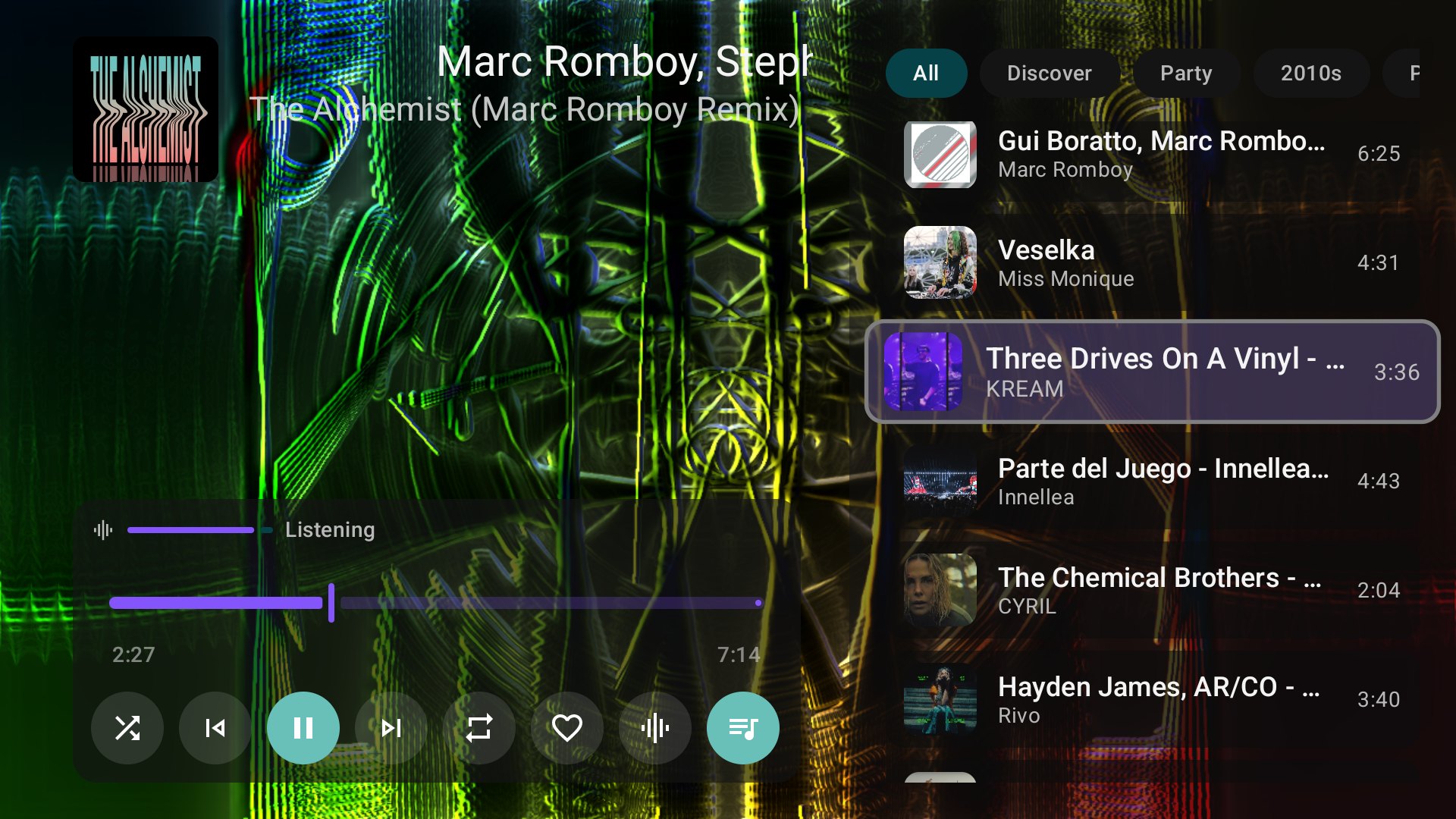
Open the queue with the button at the end of the control row to see what is coming and jump to any track. Holding Up or Down scrolls repeatedly and accelerates through a long queue. Back closes the queue.
Radio and its presets
Every queue continues as a radio once its own tracks run out:
- A YouTube album, playlist or artist hands over to the mix of its first song.
- A queue from any other provider, such as Spotify, Beatport or SoundCloud, continues with YouTube's radio for its first song, matched on YouTube with an enabled YouTube audio plugin. Only when YouTube cannot match that song does the queue use its own provider's radio; when that provider has no radio, Milkbeat asks your audio providers in priority order.
- Selecting a single track plays it and then its radio.
- Local music seeds the radio from its first song without leaving the local file.
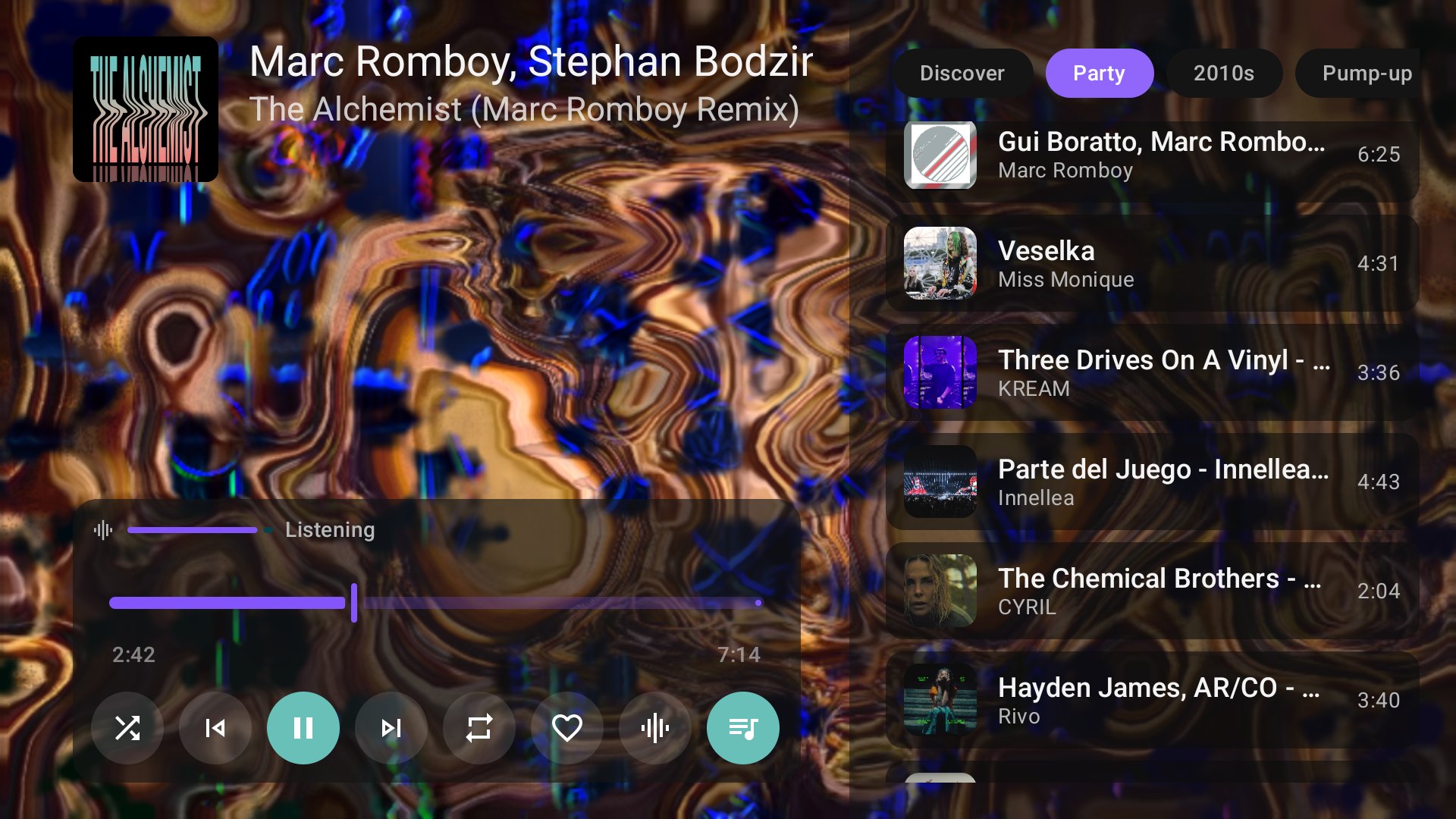
All the presets YouTube Music offers for the current radio appear in one scrolling line pinned above the queue: All, Discover, Popular, Deep cuts, moods such as Party or Pump-up, and decades such as 2010s. Press Right on a queue track to reach them, Left and Right to move along them, OK to switch, and Down to return to the track you left with the queue's scroll position kept.
Switching a preset replaces the upcoming radio suggestions while keeping the playing song, the original playlist or album and any tracks you added yourself. Later continuations stay in the chosen preset. Presets only appear when the provider supplies them for the current context; the queue keeps room for the focused row's border even when there are none. Artists you hide stay out of mixes.
Local music and radio
Local and network-folder music always plays from its file. With an enabled YouTube plugin, Milkbeat matches the first queued local song's title, artists and duration in the background and uses that match only to seed YouTube Music radio. A local album, playlist or artist queue uses its first song; collection queues continue with suggestions when endless radio is on. Without the plugin, a connection or a confident match, the local queue still plays and earlier radio suggestions are cleared.
In the Local library tab, selecting a track on an artist, release, playlist, year, genre or label page plays that track followed by its radio; Play and Shuffle queue the whole collection. Play folder in Library → Folders queues the current folder.
Queue preparation and matching
When a track from one catalog plays through another provider's audio, Milkbeat has to find the same recording there. It prepares the entire remaining queue one track at a time, in playback order, while music plays; jumping elsewhere gives the new position priority. A track carrying a provider's own ID plays it directly when that provider's turn comes in your audio order; providers ranked above it look for a match first. Spotify searches several audio providers at once, keeping your order, through the same recording checks and stream validation; prepared YouTube copies retain their known IDs.
Matching checks recording identity: title, performers and any named remix or edit must agree. For long sets uploaded by a venue or label, the known performer can be credited at the start of the video title rather than as its channel, also after a promoter credit such as "VSNZ pres.". A set someone else uploaded, such as a SoundCloud re-upload credited to the uploader, matches the performer's own YouTube upload when the channel's name opens both titles (YouTube 0.1.5 and later find that upload by its title). This requires closely matching titles and durations, the same stated event years, and no tribute/cover uploader. Sets of 20 minutes or more may differ in length by up to 15% (an upload with an intro, for example) when both titles name a live set and give the same event and year. Remixer credits may appear in the title or the artist list. Full versions are preferred over mixed excerpts, and a longer recording is accepted without a duration cap when everything else agrees; shorter conflicting excerpts are rejected. Video-capable audio providers match against recorded videos for ordinary playback, queue preparation and playlist indexing. Successful matches are cached and reused; confirmed unmatched tracks can be removed from the future queue, while temporary failures stay retryable. A track no match was found for is searched again after a day, or as soon as that plugin updates.
During a foreground lookup, the player shows Finding a match on … under the track title. A validated cached match instead shows Loading saved … match while its stream is resolved; a direct recording shows Loading audio from …. Background queue preparation does not replace the playing track’s status, and changing tracks cancels stale status updates.
Preparation reduces the work at each transition but cannot guarantee gapless playback under every network, format or provider condition.
Buffering and recovery
Streamed music loads well ahead of the playing position: Milkbeat keeps loading until about 16 MB is buffered (roughly 13 minutes of typical audio, usually the whole song) and loads more once less than 30 seconds remain. A music video's picture shares that buffer, and a slow network or low memory keeps it shorter. If a stream fails, Milkbeat asks its provider for a fresh link to the same recording and resumes where it stopped. A second media failure within a minute tries the next configured audio provider for that track. Audio-only providers remain eligible, so a failed YouTube video can fall back to the original SoundCloud audio. Playback follows your audio order; recovery uses the same order.
Audio failures while picture is hidden use ordinary audio/network recovery and retain the Video choice. A playback failure while video is active can retry as audio; an explicitly unavailable picture also uses audio fallback. Refreshing an expired audio URL preserves optional picture preparation.
If normal decoded TV audio (PCM) stops advancing for about five seconds while the player still reports playback, Milkbeat freezes the displayed progress and reconnects the output from the last position where audio was advancing, keeping the same track and queue. It tries twice before leaving the track paused with Audio output stopped. Press Play to retry. Pause, seeking, choosing another track or Stop cancels a pending restart. Quiet passages do not trigger recovery, though a recovery may repeat a short stretch of the song. Hardware-offloaded audio and encoded HDMI passthrough are outside this check.
Encrypted provider audio
Compatible plugins can supply Widevine-protected audio through the device's DRM implementation. Milkbeat fetches licenses separately from the audio and only from destinations the plugin is allowed to reach. Availability depends on the account, the recording and the device. SoundCloud previews are never treated as full tracks. Some providers encrypt the audio file itself instead of using DRM. A compatible plugin hands Milkbeat the recording's key, and Milkbeat decrypts the audio as it plays, so it can still seek and cache. The cache keeps the encrypted bytes. The offline downloader supports clear progressive audio only; HLS, DRM, encrypted provider audio and native SABR streams cannot be downloaded.
Each provider decides how Milkbeat requests its audio. A plugin built for plugin API 10 has a track fetched in one request unless the provider asks for smaller ranges, which some streaming servers need. Plugins built for older APIs keep Milkbeat's former 512 KiB ranges. If a provider's tracks pause and resume every half minute or so, update the plugin to a release built for plugin API 10.
Signed-in listening history
When Report plays to the provider is enabled in its plugin details, compatible API 8 providers receive qualified listening updates while music is playing, about every 30 seconds, as well as pause, seek and final updates. A listen qualifies after 30 seconds, or half of a shorter track. Skipped sections do not count as listened time. A signed-in provider can use these updates for your account history and recommendations; anonymous playback does not update an account. Older providers receive a report when the listen ends. Reporting reuses the recording that actually played and does not delay startup by resolving it again. If the final update of a listen fails because of a network problem, a timeout or rate limiting, Milkbeat tries it again up to three times over about a minute, while the app keeps running.